<?xml version="1.0" encoding="utf-8"?>
<feed xmlns="http://www.w3.org/2005/Atom">
  <id>https://www.sayxw.top/</id>
  <title type="text">晴耕物语</title>
  <subtitle type="text">一个被生活琐事淹没的随缘博主。</subtitle>
  <updated>2026-07-03T17:37:00.000Z</updated>
  <author><name>Sayxw</name></author>
  <link rel="alternate" href="https://www.sayxw.top/"/>
  <link rel="self" href="https://www.sayxw.top/atom.xml"/>
  <generator uri="https://github.com/CuteLeaf/Firefly">Firefly v6.16.8</generator>
    <entry>
      <id>https://www.sayxw.top/archives/32.html</id>
      <title type="text">关于在windows7下无法正常安装ESP32 C3 SuperMini的usb串口驱动的那点事儿</title>
      <published>2026-07-03T17:37:00.000Z</published>
      <updated>2026-07-03T17:37:00.000Z</updated>
      <author><name>Sayxw</name></author>
      <link rel="alternate" href="https://www.sayxw.top/archives/32.html"/>
      <summary type="text"></summary>
      <content type="html"><![CDATA[<p>正常来讲，在windows10以上系统里，ESP32 C3 SuperMini，以及ESP32 C6 SuperMini等开发版的usb串口驱动是可以自动安装的，但是在windows7系统里，并不能自动安装，且下载驱动自己安装也会出现安装错误或者感叹号，于是经过一顿搜索，找到一个解决方法:</p>
<p>这个项目→<a href="https://github.com/kutukvpavel/Esp32-Win7-VCP-drivers" target="_blank">Esp32-Win7-VCP-drivers</a>
于是现在这个问题解决起来就简单了。</p>
<section><h2>第一步<a href="#第一步"><span>#</span></a></h2><p>先去官方下载驱动→<a href="https://docs.espressif.com/projects/esp-idf/en/v4.3/esp32s2/api-guides/dfu.html?#api-guide-dfu-flash-win" target="_blank">espressif</a>，下载完是一个压缩包，解压以后备用</p></section>
<section><h2>第二步<a href="#第二步"><span>#</span></a></h2><p>去<a href="https://github.com/kutukvpavel/Esp32-Win7-VCP-drivers" target="_blank">Esp32-Win7-VCP-drivers</a>里，将对应的配置文件下载下来，放入刚刚从官方下载的驱动目录里</p></section>
<section><h2>最后一步<a href="#最后一步"><span>#</span></a></h2><p>进入电脑的设备管理器里，找到未安装到设备，确定好是ESP32 SuperMini的，右键”更新驱动程序软件”→“手动查找并安装驱动程序”→选择刚刚下载后解压的驱动目录，记住要勾选”包括子文件夹”，点击”下一步”，就会自动安装驱动，并弹出一个红色窗口，选择允许安装即可。</p><p>至此你就会发现，驱动已经正常安装了。</p><p>注意：一般ESP32 C3 SuperMini插入电脑，会有两个usb串口让安装驱动，安装一个即可，记得选择那个硬件id为USB\Class_02&amp;SubClass_02的。另一个不用安装，不影响你烧录程序。</p></section>]]></content>
    </entry>
    <entry>
      <id>https://www.sayxw.top/archives/31.html</id>
      <title type="text">关于自编译Tasmota固件添加ina226模块支持</title>
      <published>2026-05-07T08:45:31.000Z</published>
      <updated>2026-05-07T08:45:31.000Z</updated>
      <author><name>Sayxw</name></author>
      <link rel="alternate" href="https://www.sayxw.top/archives/31.html"/>
      <summary type="text"></summary>
      <content type="html"><![CDATA[<section><h3>本篇要点：如果你测量的电压高于5v，不要用电脑usb端口作为esp和ina226模块的供电测试使用，必要时推荐隔离DC模块给模块单独供电，至于为什么，看篇尾吧，都是泪…<a href="#本篇要点如果你测量的电压高于5v不要用电脑usb端口作为esp和ina226模块的供电测试使用必要时推荐隔离dc模块给模块单独供电至于为什么看篇尾吧都是泪"><span>#</span></a></h3><p>主要着重讲一下设置模块参数部分哈，因为我发现这部分网上压根找不到什么资料。。</p></section>
<section><h2>第一步：<a href="#第一步"><span>#</span></a></h2><p>自己编译Tasmota固件，在user_config_override里添加#define USE_INA226，随后开始编译</p><p>自编译固件可看Tasmota的文档，这里就不过多描述了
<a href="https://tasmota.github.io/docs/Compile-your-build/" target="_blank">https://tasmota.github.io/docs/Compile-your-build/</a></p><p>这里推荐用官方的<a href="https://github.com/benzino77/tasmocompiler" target="_blank">tasmocompiler</a>，通过docker部署好后，直接在web下图形化编辑，很方便，这里提一下，最好给tasmocompiler挂上代理，不然有时候他环境包拉不下来会编译不了。</p></section>
<section><h2>第二步正确连接esp8266和ina226模块<a href="#第二步正确连接esp8266和ina226模块"><span>#</span></a></h2><p>进入Tasmota后台，配置好模板与对应的GPIO
进入Tasmota网页，点击控制台
输入I2cDriver查看是否有35这个数字，输出示例</p><p>03:43&lt;38&gt;.867 MQT: stat/tasmota_3E242C/RESULT = {“I2CDriver”:“3,5,35,39,47,74”}</p><p>如有就代表编译时已经添加好ina226的驱动。
输入i2cscan，查看是否检测到设备。</p><section><h3>第三部，校准电压，电流值如电流与电压显示不正常，需要正确配置定义电阻和分流值<a href="#第三部校准电压电流值如电流与电压显示不正常需要正确配置定义电阻和分流值"><span>#</span></a></h3><p>比如我的这个模块电阻上有为R100的字，就输入</p><p>Sensor54 11 .1   回车
再输入Sensor54 12 15  回车</p><p>无问题的话，在Tasmota主页就显示出INA226的数据了，</p><p>如果电流电压显示的数值不对，则重新上一步改好对应的分流值，有误差的话，也可以调整上面参数来微调，差不多就行，这玩意准确度没有太好。</p><p>另外一个需要注意的地方：该模块测量部分与模块供电部分是共地(GND)，并且接线端都在一测，触点贴的很近，所以如果你测量的电压超过5v以上，那么接线一定要小心，不然就是一路火花带闪电，连放几声爆炸，我已经体会过了，烧录器+esp01s+模块一起爆炸，因为我是插着烧录器当模块供电的，一起带走，所以不要学我啊，也千万 千万 千万 别插电脑usb口当供电，不然连你电脑一起带走哈哈。</p></section></section>
<section><h2>完成，后面自己接入云或者其他接口就行<a href="#完成后面自己接入云或者其他接口就行"><span>#</span></a></h2><p>我这里是直接Tasmota里设置好mqtt，随后接入Home Assistant了，用于监控太阳能板每日天的实时电压，电流等等。</p></section>]]></content>
    </entry>
    <entry>
      <id>https://www.sayxw.top/archives/30.html</id>
      <title type="text">关于群晖系统，磁盘突然爆满的自查以及解决方案</title>
      <published>2025-10-31T09:04:41.000Z</published>
      <updated>2025-10-31T09:04:41.000Z</updated>
      <author><name>Sayxw</name></author>
      <link rel="alternate" href="https://www.sayxw.top/archives/30.html"/>
      <summary type="text"></summary>
      <content type="html"><![CDATA[<section><h2>前言<a href="#前言"><span>#</span></a></h2><p>我是pve里装的群晖DVA1622机型，某天用着用着突然不停提醒储存空间不足，检查储存空间发现系统跑满了，但是我实际文件占用和储存空间里显示的占用不符合，于是直接进ssh一探究竟。</p></section>
<section><h2>查找原因：<a href="#查找原因"><span>#</span></a></h2><p>在设置里手动开启设备的ssh后，很简单，cd到爆满的硬盘目录，通过du -h —max-depth=1命令即可查看每个文件夹的占用情况。</p><div><figure><figcaption></figcaption><pre><code><div><div><div>1</div></div><div><span>du -h --max-depth=1</span></div></div></code></pre><div><div></div><div></div></div></figure></div><p>最终在这个目录下，发现异常:</p><p>/volume1/@appstore/SurveillanceStation/local_display/.config/chromium-local-display/BrowserMetrics/</p><p>这个目录里，存在60多G的BrowserMetrics-xxx-xxxxx.pma文件，我的天，后续发现这个文件数量还在不停的新增。。</p></section>
<section><h2>解决问题<a href="#解决问题"><span>#</span></a></h2><p>我索性直接删除：</p><section><h3>慎重提示，一定要看好你敲的目录名和路径是否正确，不然你的数据就爆炸了，甚至把系统搞坏！！<a href="#慎重提示一定要看好你敲的目录名和路径是否正确不然你的数据就爆炸了甚至把系统搞坏"><span>#</span></a></h3><div><figure><figcaption></figcaption><pre><code><div><div><div>1</div></div><div><span>rm  /volume1/@appstore/SurveillanceStation/local_display/.config/chromium-local-display/BrowserMetrics/*.pma</span></div></div></code></pre><div><div></div><div></div></div></figure></div><p>然而删除掉仍然不能解决问题，因为这个文件生成的速度很快，1秒还是5秒就会生成一个，具体时间没去测试</p><p>于是决定去google一下，看看有什么解决方案</p><p>随后找到这篇文章：
<a href="https://xpenology.com/forum/topic/63410-develop-and-refine-the-dva1622-loader/page/14/#comment-326509" target="_blank">https://xpenology.com/forum/topic/63410-develop-and-refine-the-dva1622-loader/page/14/#comment-326509</a></p><p>里面说到，因为Local Display service这个组件的原因，可能是运行在pve虚拟机里有bug，把这个组件禁用掉，并删除所有xx.pma文件即可。</p><p>然而我发现我的DVA1622机型 7.2的系统了，压根没有这个组件，我也没法禁用…………</p><p>最终我选择在设置里，添加定时任务，移动删除文件。</p></section></section>
<section><h2>不舒服，继续想别的方法<a href="#不舒服继续想别的方法"><span>#</span></a></h2><p>但是！！这样并不完美，他不停的生成文件，对硬盘一直存在写入的情况，让我感觉很腻歪，某天突然想起来linux系统，有一个神奇的命令。那就是chattr</p><p>其中有一条属性-i，不可变文件（Immutable）
设置了该属性的文件无法被修改、删除、重命名、硬链接等。</p><p>索性我直接把/volume1/@appstore/SurveillanceStation/local_display/.config/chromium-local-display/下的BrowserMetrics目录，设置成不了更改。</p><p>就一条命令：</p><div><figure><figcaption></figcaption><pre><code><div><div><div>1</div></div><div><span>chattr -i/volume1/@appstore/SurveillanceStation/local_display/.config/chromium-local-display/BrowserMetrics/</span></div></div></code></pre><div><div></div><div></div></div></figure></div><p>最后验证在BrowserMetrics里，新建文件，如提示Permission denied，即可表明成功！！</p><p>最后通过ls命令，检查是否还会生成xxx.pma文件，发现没有，本问题完美解决！</p><p>注意!解决完问题后，再次进去设置里，把ssh关闭，为了安全。</p></section>]]></content>
    </entry>
    <entry>
      <id>https://www.sayxw.top/archives/29.html</id>
      <title type="text">推荐给喜欢追番的各位一个开源项目：ASS</title>
      <published>2025-01-23T21:37:00.000Z</published>
      <updated>2025-01-23T21:37:00.000Z</updated>
      <author><name>Sayxw</name></author>
      <link rel="alternate" href="https://www.sayxw.top/archives/29.html"/>
      <summary type="text"></summary>
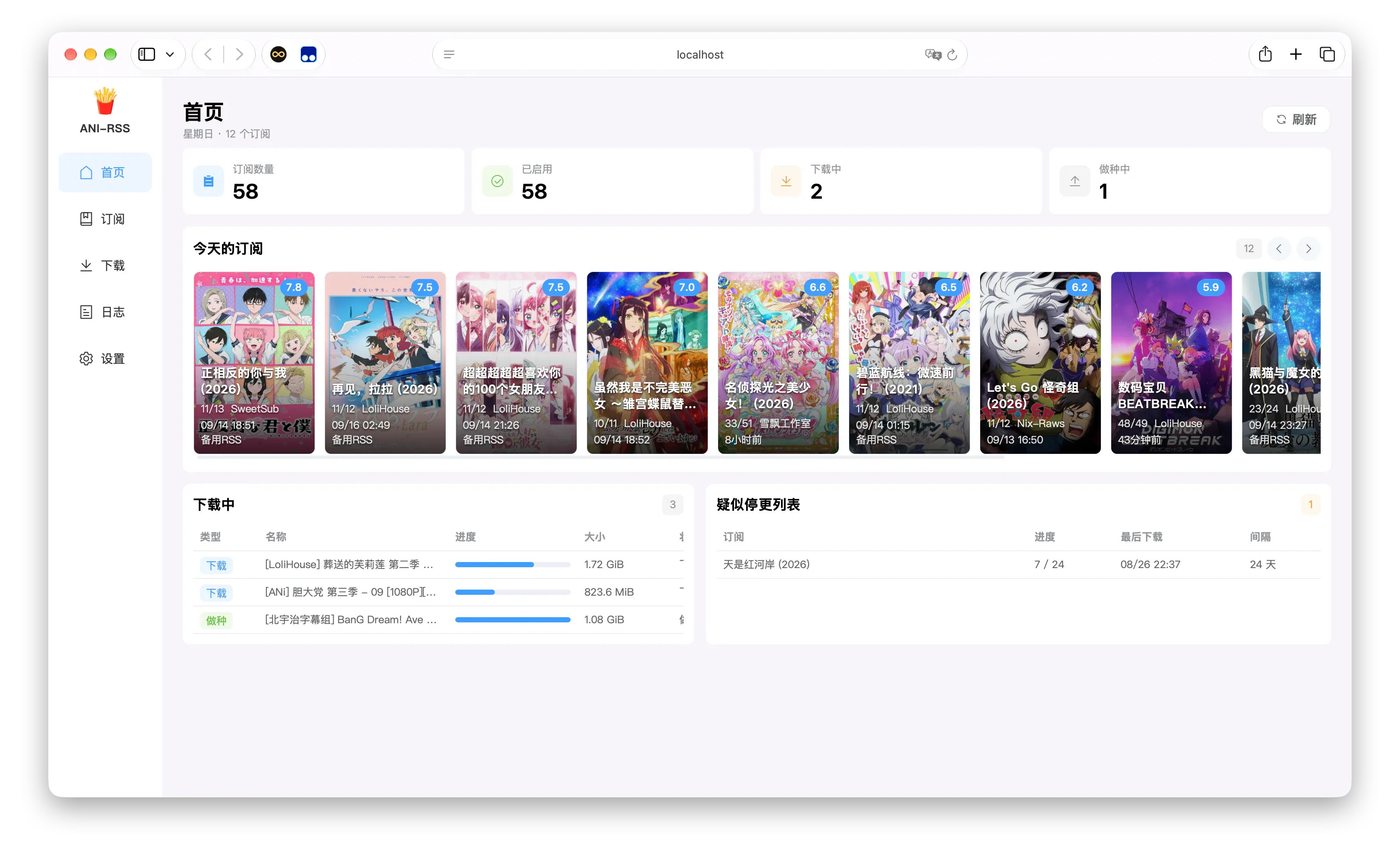
      <content type="html"><![CDATA[<p>没错如其名，这是一个订阅磁力/种子网站rss的开源程序，安装简单，docker一键或者自行下载二进制文件部署，配合qb等下载工具使用很是方便，还能配置通知，以及时得得知番剧更新进度。</p>
<p>部署方法我这里就不过多说了，毕竟人家文档写的很清晰明了了。</p>
<p>详见:<a href="https://github.com/wushuo894/ani-rss" target="_blank">https://github.com/wushuo894/ani-rss</a>
以下是一些程序截图。
</p><figure><img alt="ASS" loading="lazy" width="3248" height="2000" src="/_astro/ass-screenshot.BWq_NnOh_1IHpN1.webp" /><figcaption>ASS</figcaption></figure><p></p>
<section><h2>推广须知<a href="#推广须知"><span>#</span></a></h2><p>请不要在 B站等国内视频平台 发布视频宣传本项目
在国内平台请尽量简称 ASS</p><p>嘛还是那句话，国内环境嘛，懂得都懂，自己用就行，别过多暴露这些好用的工具，别又上演一出nastools的惨剧！谢谢，别伤了各位大佬的心。</p></section>]]></content>
    </entry>
    <entry>
      <id>https://www.sayxw.top/archives/28.html</id>
      <title type="text">小nas升级！emby解码终于不卡了！！</title>
      <published>2023-12-30T16:36:00.000Z</published>
      <updated>2023-12-30T16:36:00.000Z</updated>
      <author><name>Sayxw</name></author>
      <link rel="alternate" href="https://www.sayxw.top/archives/28.html"/>
      <summary type="text"></summary>
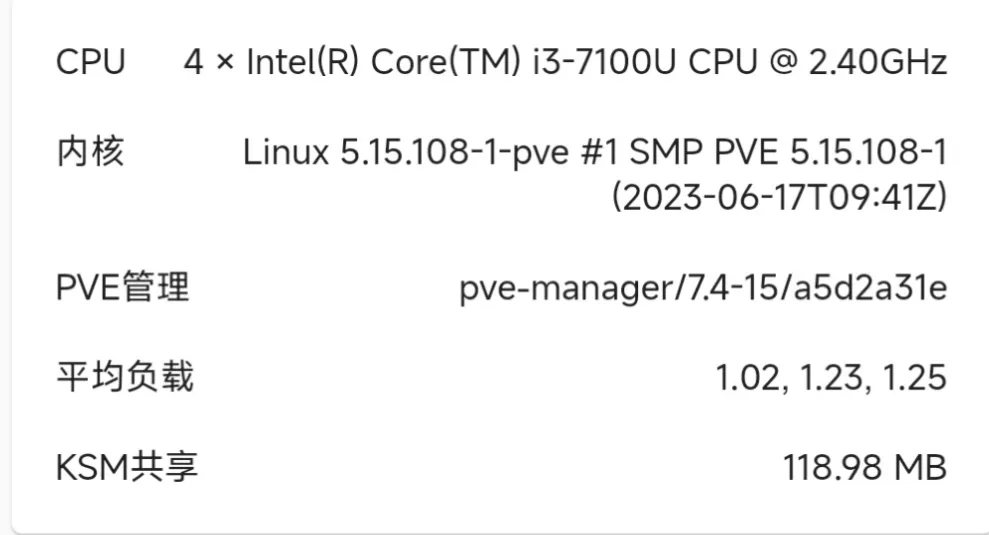
      <content type="html"><![CDATA[<section><h2>2023年终于把j1900换了！购入一个小工控机配置如下<a href="#2023年终于把j1900换了购入一个小工控机配置如下"><span>#</span></a></h2><p>小nas成长历程：
2016年购入一个树莓派2b，第一次接触到了linux这个系统，从此踏上一条折腾的道路。。
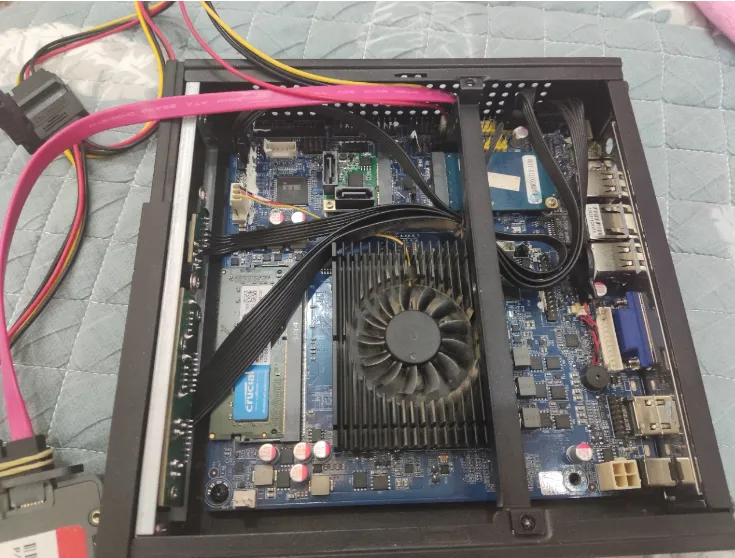
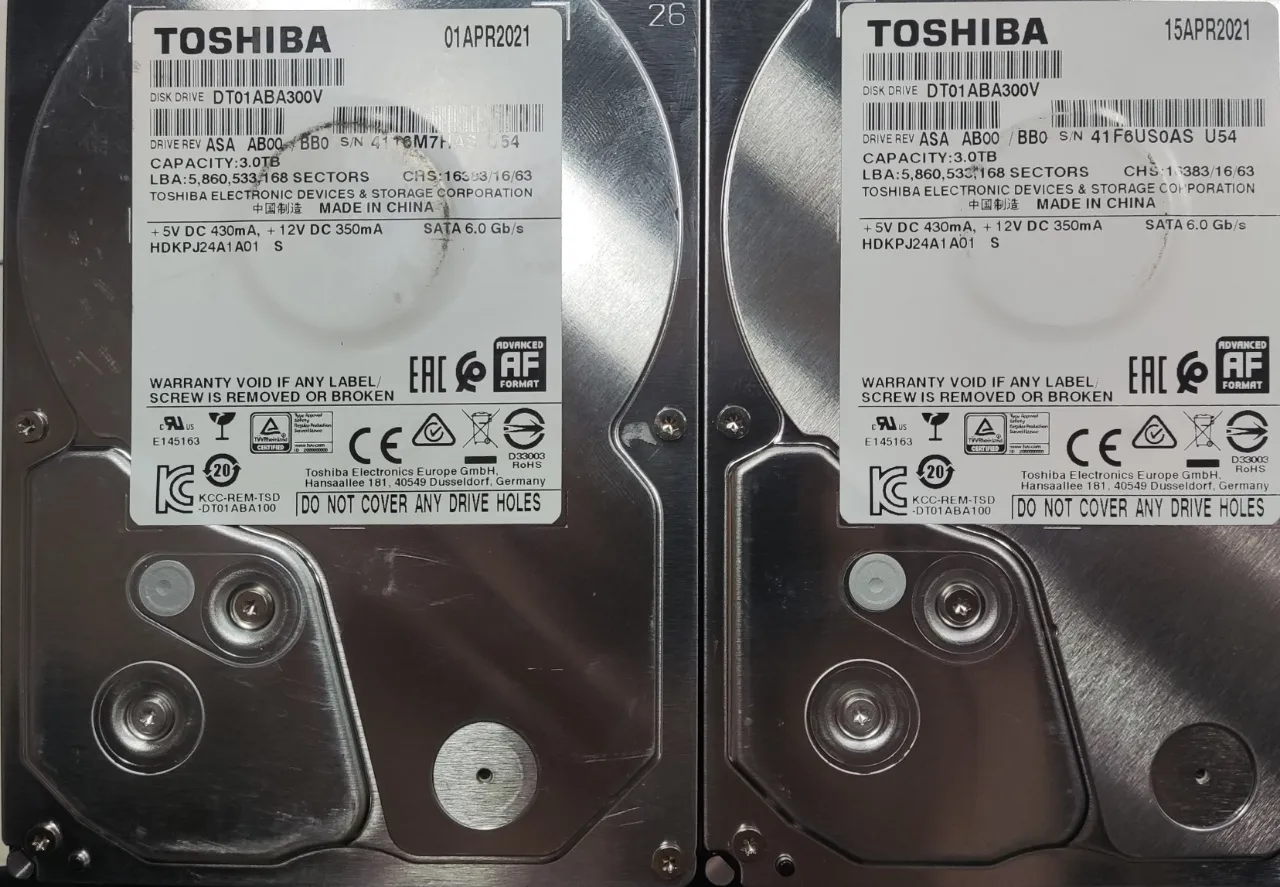
后来换成了树莓派3b，经过很长一段时间后受不了arm的性能最终转向了x86（主要是一些垃圾便宜了，树莓派价格反而炒上去了。）2020年购入一台j1900的工控机，开始玩pve虚拟机，又一次发现了新大陆,不担心系统被玩坏了！！可以拍快照随时回滚（手残党的泪目.jpg），j1900的性能，也就虚拟几个linux和玩玩docker了。2023年换成了i3 7100u。</p><p>你可能会有些疑问：怎么换代这么慢，其实是因为上学和工作的缘故，没什么时间鼓捣，折腾nas也是趁节假日，在外回访家里的nas改个配置文件都小心翼翼的，怕整不开机了在外又没法去调试。后来得知 <a href="/archives/27.html">PIKVM</a> 后这个问题完美解决，在外重装系统都行！</p><p>一些图：</p><p></p><figure><img alt="2024-01-30T08:49.png" loading="lazy" width="989" height="535" src="/_astro/1507917064.C7mqji4P_Z4p6p8.webp" /><figcaption>2024-01-30T08:49.png</figcaption></figure>
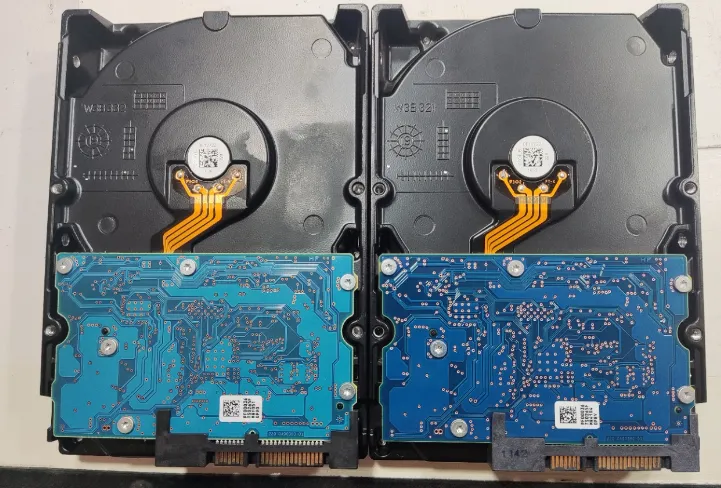
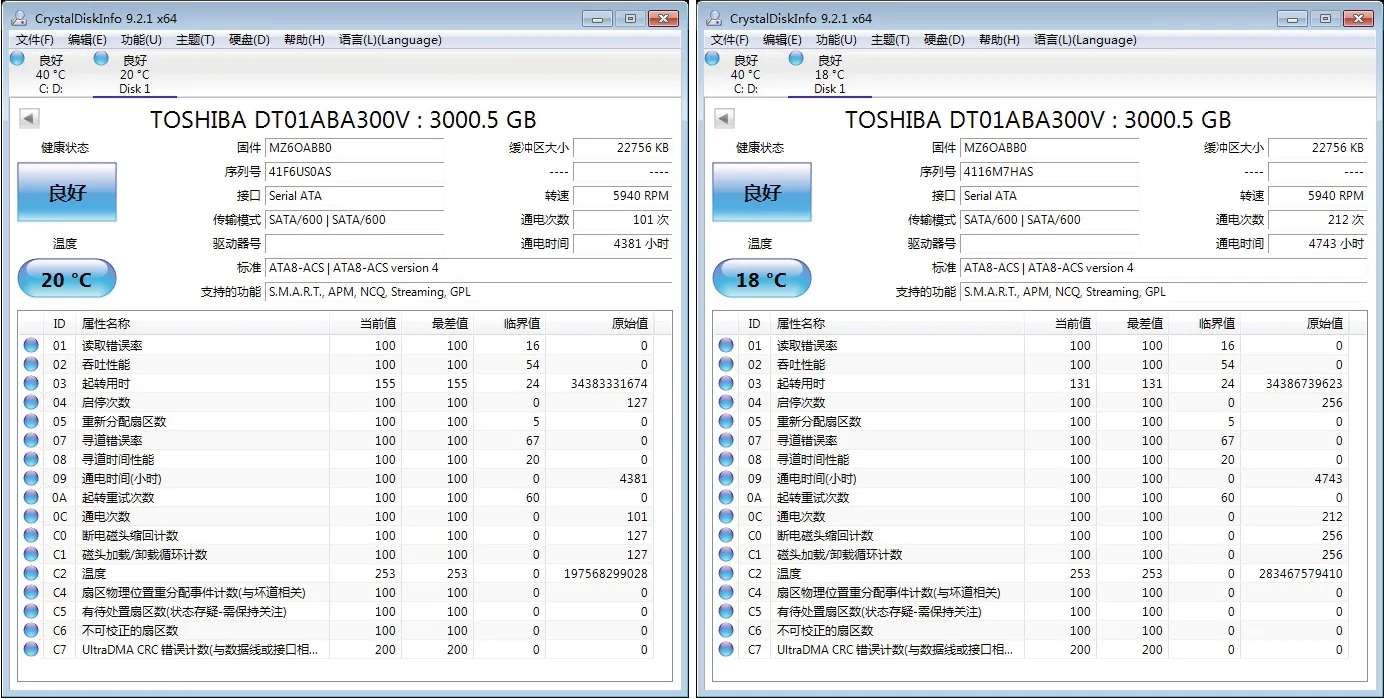
<figure><img alt="2024-01-30T08:53.png" loading="lazy" width="735" height="558" src="/_astro/3016432547.9yIenSXW_Z23KAsh.webp" /><figcaption>2024-01-30T08:53.png</figcaption></figure><p></p><p>i3 7100u的CPU  加一条16g内存，由于机箱没啥空间最终换了个蜗牛星际的nas机箱（为了方便挂硬盘），硬盘除了一块1T的SSD，其他机械硬盘纯属蹲二手，主打一个用就行的态度，毕竟只用来存一些视频、音乐等无关紧要的文件，两块东芝3T盘，某鱼300购入，看着挺新的就要了</p><p></p><figure><img alt="2024-01-30T08:57.png" loading="lazy" width="1280" height="887" src="/_astro/3880440977.Ce7mWar0_ZnTf4M.webp" /><figcaption>2024-01-30T08:57.png</figcaption></figure>
<figure><img alt="2024-01-30T08:58.png" loading="lazy" width="721" height="488" src="/_astro/1672435658.CfsXffbp_TibhP.webp" /><figcaption>2024-01-30T08:58.png</figcaption></figure>
<figure><img alt="2024-01-30T09:01.png" loading="lazy" width="1384" height="699" src="/_astro/4285056072.B75xyQGt_25joXS.webp" /><figcaption>2024-01-30T09:01.png</figcaption></figure><p></p><section><h3>系统组成：<a href="#系统组成"><span>#</span></a></h3><p>宿主机为PVE，然后虚拟出一个群晖（主要用来监控存储）、一个Home Assistant 、一个宝塔面板（博客在这里哦）、为了不直接暴露主设备到外网新建一个debian11当dmz中转，其他的就是跑在docker里一些小程序了，比如emby、qb、tmm、等等这里就不详细列出了。
这个 i3 7100u 跑个emby硬解码好多了，之前的j1900卡死。。<a href="/archives/23.html">emby搭建教程点这里</a></p></section></section>]]></content>
    </entry>
    <entry>
      <id>https://www.sayxw.top/archives/27.html</id>
      <title type="text">最近痴迷于折腾pikvm，记录下我搜集的一些文章源码等</title>
      <published>2023-07-09T09:48:00.000Z</published>
      <updated>2023-07-09T09:48:00.000Z</updated>
      <author><name>Sayxw</name></author>
      <link rel="alternate" href="https://www.sayxw.top/archives/27.html"/>
      <summary type="text"></summary>
      <content type="html"><![CDATA[<section><h2>github代理加速 <code>git clone https://ghproxy.com/+github链接。</code><a href="#github代理加速-git-clone-httpsghproxycomgithub链接"><span>#</span></a></h2><div><figure><figcaption></figcaption><pre><code><div><div><div>1</div></div><div><span>https://ghproxy.com/</span></div></div></code></pre><div><div></div><div></div></div></figure></div><p>如拉取 <code>https://docs.pikvm.org/building_os/</code> 就是</p><div><figure><figcaption></figcaption><pre><code><div><div><div>1</div></div><div><span>git clone https://ghproxy.com/https://docs.pikvm.org/building_os.git</span></div></div></code></pre><div><div></div><div></div></div></figure></div></section>
<section><h2>pikvm官方及源代码仓库：<a href="#pikvm官方及源代码仓库"><span>#</span></a></h2><div><figure><figcaption></figcaption><pre><code><div><div><div>1</div></div><div><span>https://github.com/pikvm/pikvm</span></div></div><div><div><div>2</div></div><div><span>https://docs.pikvm.org/building_os/</span></div></div><div><div><div>3</div></div><div><span>https://github.com/pikvm/os</span></div></div></code></pre><div><div></div><div></div></div></figure></div></section>
<section><h2>官方文档<a href="#官方文档"><span>#</span></a></h2><div><figure><figcaption></figcaption><pre><code><div><div><div>1</div></div><div><span>https://docs.pikvm.org/</span></div></div></code></pre><div><div></div><div></div></div></figure></div></section>
<section><h2>其他大佬的修改适配源码：<a href="#其他大佬的修改适配源码"><span>#</span></a></h2><div><figure><figcaption></figcaption><pre><code><div><div><div>1</div></div><div><span>https://github.com/Yura80/pikvm-rock64   项目很久没更新了</span></div></div><div><div><div>2</div></div><div>
</div></div><div><div><div>3</div></div><div><span>git clone https://github.com/Yura80/pikvm-rock64.git</span></div></div><div><div><div>4</div></div><div><span>git clone https://github.com/Yura80/os.git</span></div></div><div><div><div>5</div></div><div><span>git clone https://github.com/Yura80/packages.git</span></div></div><div><div><div>6</div></div><div><span>orangepi zero的pikvm的更新，所使用的第三方库为，https://github.com/kaaass/pikvm-repo 该库中好像有一个脚本可以更新使用，以及能够正常使用2fa登录</span></div></div></code></pre><div><div></div><div></div></div></figure></div></section>
<section><h2>ROCK64相关<a href="#rock64相关"><span>#</span></a></h2><div><figure><figcaption></figcaption><pre><code><div><div><div>1</div></div><div><span>https://wiki.pine64.org/wiki/ROCK64</span></div></div><div><div><div>2</div></div><div><span>https://wiki.pine64.org/wiki/ROCK64_Software_Releases</span></div></div><div><div><div>3</div></div><div><span>https://redirect.armbian.com/rock64/Jammy_current</span></div></div><div><div><div>4</div></div><div><span>https://github.com/ayufan-rock64/linux-build/blob/master/recipes/flash-spi.md</span></div></div></code></pre><div><div></div><div></div></div></figure></div></section>
<section><h2>和pikvm类似的项目：<a href="#和pikvm类似的项目"><span>#</span></a></h2><div><figure><figcaption></figcaption><pre><code><div><div><div>1</div></div><div><span>https://github.com/Nihiue/open-ip-kvm</span></div></div><div><div><div>2</div></div><div>
</div></div><div><div><div>3</div></div><div><span>https://gitee.com/sonata1/code-snippet/blob/master/open-kvm/%E9%9A%8F%E8%BA%ABwifi%E6%90%AD%E5%BB%BAopen-kvm.txt</span></div></div></code></pre><div><div></div><div></div></div></figure></div></section>
<section><h2>docker下运行测试<a href="#docker下运行测试"><span>#</span></a></h2><div><figure><figcaption></figcaption><pre><code><div><div><div>1</div></div><div><span>https://hub.docker.com/r/iyonghsu/pikvm-arm64</span></div></div><div><div><div>2</div></div><div><span>https://hub.docker.com/r/shantur/pikvm</span></div></div></code></pre><div><div></div><div></div></div></figure></div></section>
<section><h2>相关文章<a href="#相关文章"><span>#</span></a></h2><div><figure><figcaption></figcaption><pre><code><div><div><div>1</div></div><div><span>https://v2ex.com/t/932953</span></div></div></code></pre><div><div></div><div></div></div></figure></div></section>
<section><h2>最新活跃的项目<a href="#最新活跃的项目"><span>#</span></a></h2><div><figure><figcaption></figcaption><pre><code><div><div><div>1</div></div><div><span>https://github.com/jacobbar/fruity-pikvm</span></div></div><div><div><div>2</div></div><div><span>https://github.com/xe5700/kvmd-armbian</span></div></div><div><div><div>3</div></div><div><span>https://github.com/toss-a/pikvm-armbian 较新</span></div></div><div><div><div>4</div></div><div><span>https://github.com/srepac/kvmd-armbian.git 最新 x86版是ch9329控制键鼠</span></div></div><div><div><div>5</div></div><div><span>https://blog.heysh.xyz/2023/05/20/ipkvm_4_poor_man/</span></div></div><div><div><div>6</div></div><div><span>https:github.com/Road-tech/PiKVM_NanoPi-Neo2</span></div></div></code></pre><div><div></div><div></div></div></figure></div></section>]]></content>
    </entry>
    <entry>
      <id>https://www.sayxw.top/archives/26.html</id>
      <title type="text">解决老版本Debian使用apt-get update不成功的问题</title>
      <published>2023-04-18T21:32:00.000Z</published>
      <updated>2023-04-18T21:32:00.000Z</updated>
      <author><name>Sayxw</name></author>
      <link rel="alternate" href="https://www.sayxw.top/archives/26.html"/>
      <summary type="text"></summary>
      <content type="html"><![CDATA[<p>在一个老版本的debian上使用apt-get update的时候，出现报错，本以为是我挂梯，结果发现并不是、、、
报错如下：</p>
<div><figure><figcaption></figcaption><pre><code><div><div><div>1</div></div><div><span>.......</span></div></div><div><div><div>2</div></div><div><span>E: Repository 'http://security.debian.org/debian-security buster/updates InRelease' changed its 'Suite' value from 'stable' to 'oldstable'</span></div></div><div><div><div>3</div></div><div><span>N: This must be accepted explicitly before updates for this repository can be applied. See apt-secure(8) manpage for details.</span></div></div></code></pre><div><div></div><div></div></div></figure></div>
<p>解决办法其实很简单，在<code>apt-get update</code>后添加一个<code>--allow-releaseinfo-change</code>即可解决，一次不行就再执行几次，最后会成功的。</p>
<div><figure><figcaption></figcaption><pre><code><div><div><div>1</div></div><div><span>apt-get update --allow-releaseinfo-change</span></div></div></code></pre><div><div></div><div></div></div></figure></div>
<p>如果不是root用户就加上sudo 这个不用多说吧。</p>
<div><figure><figcaption></figcaption><pre><code><div><div><div>1</div></div><div><span>sudo apt-get update --allow-releaseinfo-change</span></div></div></code></pre><div><div></div><div></div></div></figure></div>]]></content>
    </entry>
    <entry>
      <id>https://www.sayxw.top/archives/25.html</id>
      <title type="text">为docker添加支持ipv6的macvlan网络</title>
      <published>2023-03-09T09:47:00.000Z</published>
      <updated>2023-03-09T09:47:00.000Z</updated>
      <author><name>Sayxw</name></author>
      <link rel="alternate" href="https://www.sayxw.top/archives/25.html"/>
      <summary type="text"></summary>
      <content type="html"><![CDATA[<section><h2>其实和ipv4的一样，就是多了个ipv6的参数<a href="#其实和ipv4的一样就是多了个ipv6的参数"><span>#</span></a></h2><div><figure><figcaption></figcaption><pre><code><div><div><div>1</div></div><div><span>docker network create -d macvlan --subnet=192.168.31.0/24 --gateway=192.168.31.1 --ipv6 --subnet=240e:XXXX:XXXX:XXXX::/60 --gateway=240e:XXXX:XXXX:XXXX::1  -o parent=eth0 macnet</span></div></div></code></pre><div><div></div><div></div></div></figure></div></section>
<section><h2>参数：<a href="#参数"><span>#</span></a></h2><section><h3>ipv4的  192.168.31.0/24  这个是IP网段，填你路由器的IP段即可 192.168.31.1 是网关<a href="#ipv4的--19216831024--这个是ip网段填你路由器的ip段即可-192168311-是网关"><span>#</span></a></h3><div><figure><figcaption></figcaption><pre><code><div><div><div>1</div></div><div><span>--subnet=192.168.31.0/24 --gateway=192.168.31.1</span></div></div></code></pre><div><div></div><div></div></div></figure></div></section><section><h3>ipv6的 240e:XXXX:XXXX:XXXX::/60  这个是IP网段，填你路由器的IP段即可 240e:XXXX:XXXX:XXXX::1 是网关<a href="#ipv6的-240exxxxxxxxxxxx60--这个是ip网段填你路由器的ip段即可-240exxxxxxxxxxxx1-是网关"><span>#</span></a></h3><p>网段取你路由器拨号获取的ipv6地址的前4段即可 后面跟::/60   后面网关填路由器获取的ipv6网关</p><div><figure><figcaption></figcaption><pre><code><div><div><div>1</div></div><div><span>--ipv6 --subnet=240e:XXXX:XXXX:XXXX::/60 --gateway=240e:XXXX:XXXX:XXXX::1</span></div></div></code></pre><div><div></div><div></div></div></figure></div></section><section><h3>并不完美，因为路由器每次重新拨号会导致ipv6前缀变化，那样你创建的这条macvlan网络就失效了，只能重新创建，所以最好还是直接在pve上创建lxc容器，再里边安装docker来用最省心，直接开启docker ipv6支持即可，我折腾这个主要是测试用。<a href="#并不完美因为路由器每次重新拨号会导致ipv6前缀变化那样你创建的这条macvlan网络就失效了只能重新创建所以最好还是直接在pve上创建lxc容器再里边安装docker来用最省心直接开启docker-ipv6支持即可我折腾这个主要是测试用"><span>#</span></a></h3></section></section>
<section><h2>PVE用户注意：<a href="#pve用户注意"><span>#</span></a></h2><p>如果你是在pve宿主机上安装的docker，那就需要吧上面命令末尾的 <code>-o parent=eth0</code> 改成 <code>-o parent=vmbr0</code> ，具体在pve终端上输入命令<code>ifconfig</code>查看你网卡信息。</p><p></p><figure><img alt="请输入图片描述" loading="lazy" width="500" height="275" src="/_astro/docker-ipv6.DdpK2unK_Z1sMQxs.webp" /><figcaption>请输入图片描述</figcaption></figure><p></p></section>]]></content>
    </entry>
    <entry>
      <id>https://www.sayxw.top/archives/24.html</id>
      <title type="text">screen进不去啦？32694.m (Attached)</title>
      <published>2022-01-28T10:37:00.000Z</published>
      <updated>2022-01-28T10:37:00.000Z</updated>
      <author><name>Sayxw</name></author>
      <link rel="alternate" href="https://www.sayxw.top/archives/24.html"/>
      <summary type="text"></summary>
      <content type="html"><![CDATA[<section><h3>如果在screen下的终端，突然因为网络等原因掉线了，再一次登陆就会显示<a href="#如果在screen下的终端突然因为网络等原因掉线了再一次登陆就会显示"><span>#</span></a></h3><div><figure><figcaption></figcaption><pre><code><div><div><div>1</div></div><div><span>32694.m (Attached)</span></div></div></code></pre><div><div></div><div></div></div></figure></div></section>
<section><h3>通过screen -r  发现进不去了<a href="#通过screen--r--发现进不去了"><span>#</span></a></h3></section>
<section><h3>其实很简单，通过踢掉上一个用户，再进入即可<a href="#其实很简单通过踢掉上一个用户再进入即可"><span>#</span></a></h3><div><figure><figcaption></figcaption><pre><code><div><div><div>1</div></div><div><span>screen -D -r  窗口id</span></div></div></code></pre><div><div></div><div></div></div></figure></div><img src="//fp1.fghrsh.net/2020/07/01/76adc4e8cc47c1b1118258c0a31fde45.jpg" alt="76adc4e8cc47c1b1118258c0a31fde45.jpg" /></section>]]></content>
    </entry>
    <entry>
      <id>https://www.sayxw.top/archives/23.html</id>
      <title type="text">docker成瘾--搭建emby  自己的家庭影院</title>
      <published>2022-01-12T12:11:00.000Z</published>
      <updated>2022-01-12T12:11:00.000Z</updated>
      <author><name>Sayxw</name></author>
      <link rel="alternate" href="https://www.sayxw.top/archives/23.html"/>
      <summary type="text"></summary>
      <content type="html"><![CDATA[<section><h3>Emby，有人听说过吧，一款强大的媒体库程序，（部分功能收费）类似的还有Plex、Jellyfin，可以说极大的提升了Nas的可玩性，功能强大，支持硬解（nas解码），页面美观，最重要的是比群辉自带的媒体库好用哈哈。<a href="#emby有人听说过吧一款强大的媒体库程序部分功能收费类似的还有plexjellyfin可以说极大的提升了nas的可玩性功能强大支持硬解nas解码页面美观最重要的是比群辉自带的媒体库好用哈哈"><span>#</span></a></h3><p>官网：<a href="https://emby.media/" target="_blank">https://emby.media/</a></p></section>
<section><h2>当然也可以用Jellyfin，免费的。<a href="#当然也可以用jellyfin免费的"><span>#</span></a></h2><p></p><figure><img alt="Emby" loading="lazy" width="640" height="444" src="/_astro/emby.BRf8BI9C_6pSxR.webp" /><figcaption>Emby</figcaption></figure><p></p><section><h3>好了就不介绍了，更多内容网上一搜一大把，这里主要讲一下怎能快速搭建起来~<a href="#好了就不介绍了更多内容网上一搜一大把这里主要讲一下怎能快速搭建起来"><span>#</span></a></h3><p>还是用docker，主要是维护方便。</p><div><figure><figcaption></figcaption><pre><code><div><div><div>1</div></div><div><span>docker run -itd -v /data/emby:/config -v /mnt/视频库:/mnt/视频库 --name emby --hostname emby --restart=always  emby/embyserver</span></div></div></code></pre><div><div></div><div></div></div></figure></div></section><section><h3>Jellyfin的<a href="#jellyfin的"><span>#</span></a></h3><div><figure><figcaption></figcaption><pre><code><div><div><div>1</div></div><div><span>docker run -itd -v /data/jellyfin:/config -v /mnt/视频库:/mnt/视频库 --name jellyfin --hostname jellyfin --restart=always jellyfin/jellyfin:latest</span></div></div></code></pre><div><div></div><div></div></div></figure></div></section></section>
<section><h2>完活，就这么简单，访问<code>http://ip:8096</code> 即可看到页面。<a href="#完活就这么简单访问httpip8096-即可看到页面"><span>#</span></a></h2></section>
<section><h2>解析<a href="#解析"><span>#</span></a></h2><blockquote><p>-v /data/emby:/config        emby的配置文件
-v /mnt/视频库:/mnt/视频库    放视频的地方，根据自己需要修改路径哈。</p></blockquote><section><h3>刮削视频图片不正常？加个hosts<a href="#刮削视频图片不正常加个hosts"><span>#</span></a></h3><blockquote><p>13.224.161.90 api.themoviedb.org
13.225.103.96 <a href="http://www.themoviedb.org" target="_blank">www.themoviedb.org</a>
104.16.61.155 image.tmdb.org
13.224.153.106 thetvdb.com
13.225.132.58 api.thetvdb.com</p></blockquote></section><section><h3>不一定一直可用，设置前可自己验证一下。<a href="#不一定一直可用设置前可自己验证一下"><span>#</span></a></h3></section></section>]]></content>
    </entry>
    <entry>
      <id>https://www.sayxw.top/archives/22.html</id>
      <title type="text">简单利用Nginx反代网站实现认证访问</title>
      <published>2022-01-01T12:07:00.000Z</published>
      <updated>2022-01-01T12:07:00.000Z</updated>
      <author><name>Sayxw</name></author>
      <link rel="alternate" href="https://www.sayxw.top/archives/22.html"/>
      <summary type="text"></summary>
      <content type="html"><![CDATA[<section><h3>创建认证密码方法<a href="#创建认证密码方法"><span>#</span></a></h3><div><figure><figcaption></figcaption><pre><code><div><div><div>1</div></div><div><span>printf "your_username:$(openssl passwd -crypt your_password)\n" &gt;&gt;  /var/www/html/.htpasswd</span></div></div></code></pre><div><div></div><div></div></div></figure></div></section>
<section><h3>nginx配置文件:<a href="#nginx配置文件"><span>#</span></a></h3><div><div><div><figure><figcaption></figcaption><pre><code><div><div><div>1</div></div><div><span>events {</span></div></div><div><div><div>2</div></div><div><span><span>    </span></span><span>worker_connections  1024;</span></div></div><div><div><div>3</div></div><div><span>}</span></div></div><div><div><div>4</div></div><div>
</div></div><div><div><div>5</div></div><div><span>http {</span></div></div><div><div><div>6</div></div><div>
</div></div><div><div><div>7</div></div><div><span>server {</span></div></div><div><div><div>8</div></div><div><span><span>     </span></span><span>listen 90;</span></div></div><div><div><div>9</div></div><div><span><span>     </span></span><span>server_name _;</span></div></div><div><div><div>10</div></div><div><span><span>     </span></span><span>location / {</span></div></div><div><div><div>11</div></div><div><span><span>         </span></span><span>#要求登陆认证</span></div></div><div><div><div>12</div></div><div><span><span>         </span></span><span>auth_basic "Protected";</span></div></div><div><div><div>13</div></div><div><span><span>         </span></span><span>#密码文件路径</span></div></div><div><div><div>14</div></div><div><span><span>         </span></span><span>auth_basic_user_file /opt/nginx/htpasswd;</span></div></div><div><div><div>15</div></div><div><span><span>         </span></span><span>#反向代理链接</span></div></div><div><div><div>16</div></div><div><span><span>         </span></span><span>proxy_pass http://127.0.0.1:8888/;</span></div></div><div><div><div>17</div></div><div><span><span>         </span></span><span>}</span></div></div><div><div><div>18</div></div><div><span><span>      </span></span><span>}</span></div></div><div><div><div>19</div></div><div>
</div></div><div><div><div>20</div></div><div><span>}</span></div></div></code></pre><div><div></div><div></div></div></figure><div></div></div><span>展开</span><span>收起</span></div></div></section>
<section><h3>要求Nginx编译的时候添加好相关的功能模块支持<a href="#要求nginx编译的时候添加好相关的功能模块支持"><span>#</span></a></h3></section>]]></content>
    </entry>
    <entry>
      <id>https://www.sayxw.top/archives/21.html</id>
      <title type="text">python竟然有这个方便的用法，我知道的太晚了！！</title>
      <published>2021-12-21T19:58:00.000Z</published>
      <updated>2021-12-21T19:58:00.000Z</updated>
      <author><name>Sayxw</name></author>
      <link rel="alternate" href="https://www.sayxw.top/archives/21.html"/>
      <summary type="text"></summary>
      <content type="html"><![CDATA[<p>还在因为pip install 安装一大堆依赖后使得自己的系统环境乱糟糟而糟心吗？</p>
<p>我忘了Python是有虚拟环境的。。。。</p>
<p><a href="https://img.fghrsh.net/image/YCvV1" target="_blank"></a></p><figure><a href="https://img.fghrsh.net/image/YCvV1" target="_blank"><img alt="Python 技巧" loading="lazy" width="500" height="312" src="/_astro/python-trick.D11eR5q-_dFVwI.webp" /><figcaption>Python 技巧</figcaption></a></figure><p></p>
<p>pyton创建虚拟环境
python -m venv 文件名</p>
<p>会在当前目录生成  文件名 的文件夹</p>
<p>后面的命令要用文件夹/bin/下的python执行</p>
<p>这样每个项目分别在项目下用创建好的虚拟环境安装和配置执行，互不影响，多是一件美事呢~~~~</p>]]></content>
    </entry>
    <entry>
      <id>https://www.sayxw.top/archives/20.html</id>
      <title type="text">续搭建mysql后，docker安装phpmyadmin！</title>
      <published>2021-12-10T10:53:00.000Z</published>
      <updated>2021-12-10T10:53:00.000Z</updated>
      <author><name>Sayxw</name></author>
      <link rel="alternate" href="https://www.sayxw.top/archives/20.html"/>
      <summary type="text">docker创建phpmyadmin配合mysql使用。</summary>
      <content type="html"><![CDATA[<section><h3>先把phpmyadmin镜像拉取下来<a href="#先把phpmyadmin镜像拉取下来"><span>#</span></a></h3><div><figure><figcaption></figcaption><pre><code><div><div><div>1</div></div><div><span>docker pull phpmyadmin/phpmyadmin</span></div></div></code></pre><div><div></div><div></div></div></figure></div></section>
<section><h3>使用该镜像启动容器<a href="#使用该镜像启动容器"><span>#</span></a></h3><div><figure><figcaption></figcaption><pre><code><div><div><div>1</div></div><div><span>docker run -d --name myadmin -e PMA_HOST=192.168.206.132 -e PMA_PORT=3307 -p 8283:80 phpmyadmin/phpmyadmin</span></div></div></code></pre><div><div></div><div></div></div></figure></div></section>
<section><h2>命令说明：<a href="#命令说明"><span>#</span></a></h2><p>-e PMA_HOST=192.168.206.132 数据库的IP地址
-e PMA_PORT=3307 数据库的端口
-p 8283&lt;80&gt; 将容器80端口映射到主机的8283端口
—name myadmin 将容器命名为myadmin</p><section><h4>如果想让其支持任意数据库的地址，包括外网的，就加一条变量-e PMA_ARBITRARY=1<a href="#如果想让其支持任意数据库的地址包括外网的就加一条变量-e-pma_arbitrary1"><span>#</span></a></h4><div><figure><figcaption></figcaption><pre><code><div><div><div>1</div></div><div><span>docker run --name myadmin -d -e PMA_ARBITRARY=1 -p 8080:80 phpmyadmin/phpmyadmin</span></div></div></code></pre><div><div></div><div></div></div></figure></div></section><section><h3>修改数据库编码为UTF8<a href="#修改数据库编码为utf8"><span>#</span></a></h3><p>在 my.cnf中添加</p><div><figure><figcaption></figcaption><pre><code><div><div><div>1</div></div><div><span>[client]</span></div></div><div><div><div>2</div></div><div><span>default-character-set=utf8</span></div></div><div><div><div>3</div></div><div>
</div></div><div><div><div>4</div></div><div><span>[mysqld]</span></div></div><div><div><div>5</div></div><div><span>character-set-server=utf8</span></div></div><div><div><div>6</div></div><div><span>collation-server=utf8_general_ci</span></div></div></code></pre><div><div></div><div></div></div></figure></div></section><section><h3>查看容器运行情况<a href="#查看容器运行情况"><span>#</span></a></h3><div><figure><figcaption></figcaption><pre><code><div><div><div>1</div></div><div><span>docker ps</span></div></div></code></pre><div><div></div><div></div></div></figure></div></section></section>]]></content>
    </entry>
    <entry>
      <id>https://www.sayxw.top/archives/19.html</id>
      <title type="text">docker快速搭建mysql</title>
      <published>2021-10-20T17:39:00.000Z</published>
      <updated>2021-10-20T17:39:00.000Z</updated>
      <author><name>Sayxw</name></author>
      <link rel="alternate" href="https://www.sayxw.top/archives/19.html"/>
      <summary type="text">通过docker快速创建mysql数据库</summary>
      <content type="html"><![CDATA[<section><h3>创建本地服务目录<a href="#创建本地服务目录"><span>#</span></a></h3><div><figure><figcaption></figcaption><pre><code><div><div><div>1</div></div><div><span>mkdir /data/server</span></div></div><div><div><div>2</div></div><div><span>mkdir /data/server/mysql</span></div></div><div><div><div>3</div></div><div><span>mkdir /data/server/mysql/data</span></div></div><div><div><div>4</div></div><div><span>mkdir /data/server/mysql/log</span></div></div></code></pre><div><div></div><div></div></div></figure></div></section>
<section><h3>创建初始容器<a href="#创建初始容器"><span>#</span></a></h3><div><figure><figcaption></figcaption><pre><code><div><div><div>1</div></div><div><span>docker run -d -e MYSQL_ROOT_PASSWORD=123456  --name mysqlls mysql:5.6.50</span></div></div></code></pre><div><div></div><div></div></div></figure></div></section>
<section><h3>复制初始容器服务配置文件<a href="#复制初始容器服务配置文件"><span>#</span></a></h3><div><figure><figcaption></figcaption><pre><code><div><div><div>1</div></div><div><span>docker cp mysqlls:/etc/mysql /data/server/mysql/config</span></div></div></code></pre><div><div></div><div></div></div></figure></div></section>
<section><h3>删除初始容器<a href="#删除初始容器"><span>#</span></a></h3><div><figure><figcaption></figcaption><pre><code><div><div><div>1</div></div><div><span>docker stop mysqlls</span></div></div><div><div><div>2</div></div><div><span>docker rm mysqlls</span></div></div></code></pre><div><div></div><div></div></div></figure></div></section>
<section><h3>正式创建容器<a href="#正式创建容器"><span>#</span></a></h3><p>docker run -e MYSQL_ROOT_PASSWORD=123456 -v /data/server/mysql/data:/var/lib/mysql -v /data/server/mysql/log:/var/log/mysql -v /data/server/mysql/config:/etc/mysql -v /etc/localtime:/etc/localtime —name mysql5.6.50 -p 3306&lt;3306&gt;  —restart=always -d mysql&lt;5&gt;.6.50</p></section>
<section><h3>解析<a href="#解析"><span>#</span></a></h3><blockquote><p>-e MYSQL_ROOT_PASSWORD=123456    123456就是mysql的root密码
-v /data/server/mysql/data:/var/lib/mysql    映射本地目录  数据库
-v /data/server/mysql/log:/var/log/mysql     映射本地目录  日志
-v /data/server/mysql/config:/etc/mysql      映射本地目录  配置文件
-v /etc/localtime:/etc/localtime          同步容器与本机的时间（非必须但推荐）
—name mysql5.6.50                           容器名字
-p 3306&lt;3306&gt;                                 本地端口/容器内端口
—restart=always                             如果加了此条变量，容器默认会和本机自启动
-d mysql&lt;5&gt;.6.50                              容器所使用的镜像  mysql&lt;版本&gt;</p></blockquote></section>]]></content>
    </entry>
    <entry>
      <id>https://www.sayxw.top/archives/18.html</id>
      <title type="text">更方便的rtmp服务器搭建方法livego</title>
      <published>2021-10-01T15:45:00.000Z</published>
      <updated>2021-10-01T15:45:00.000Z</updated>
      <author><name>Sayxw</name></author>
      <link rel="alternate" href="https://www.sayxw.top/archives/18.html"/>
      <summary type="text"></summary>
      <content type="html"><![CDATA[<p>猛然间发现的一个项目，基于go语言，所以绝对跨平台呀</p>
<p>用起来很方便，具体去看项目文档吧。
<a href="https://github.com/gwuhaolin/livego/blob/master/README_cn.md" target="_blank">https://github.com/gwuhaolin/livego/blob/master/README_cn.md</a></p>
<p>更新本博客文章
<a href="/archives/8.html">树莓派搭建RTMP服务进行本地推流、拉流</a></p>]]></content>
    </entry>
    <entry>
      <id>https://www.sayxw.top/archives/17.html</id>
      <title type="text">分享个windows下后台运行frp的方法吧</title>
      <published>2021-07-20T15:39:00.000Z</published>
      <updated>2021-07-20T15:39:00.000Z</updated>
      <author><name>Sayxw</name></author>
      <link rel="alternate" href="https://www.sayxw.top/archives/17.html"/>
      <summary type="text"></summary>
      <content type="html"><![CDATA[<p>以前只在linux下用frp，后台运行很简单，要么配置成服务启动(frpc.service)，要么直接在screen下运行。。</p>
<p>今天有需求在win下使用，但是发现每次都前台运行很不舒服，并且还得通过cmd启动，不方便，所以，下面介绍两种方法，分别为前台和后台运行。</p>
<p><strong>后台运行</strong>
很简单，就两行代码</p>
<p>新建一个  文本文档.txt  文件，写入</p>
<div><figure><figcaption></figcaption><pre><code><div><div><div>1</div></div><div><span>set ws=wscript.createobject("wscript.shell")</span></div></div><div><div><div>2</div></div><div><span>ws.run "cmd /c C:\Windows\frp\frpc -c C:\Windows\frp\frpc.ini",0</span></div></div></code></pre><div><div></div><div></div></div></figure></div>
<p>.txt改为vbs即可。
双击运行，无任何提示，可以任务管理器找到进程，进程名就是frpc。</p>
<p><strong>前台运行</strong>
同样新建一个 文本文档.txt ，写入</p>
<div><figure><figcaption></figcaption><pre><code><div><div><div>1</div></div><div><span>cmd /c C:\Windows\frp\frpc -c C:\Windows\frp\frpc.ini</span></div></div></code></pre><div><div></div><div></div></div></figure></div>
<p>.txt改为.bat</p>
<p>也是双击运行，运行状态为黑框正常前台运行</p>
<p>备注：
frpc.exe为主程序
frpc.ini为配置文件。</p>
<p>具体frp程序在github查找。
<a href="https://github.com/fatedier/frp" target="_blank">https://github.com/fatedier/frp</a>
使用时，注意服务端(frps)和客户端(frpc)要版本统一。</p>
<p><em><strong><strong>注意填写frpc.exe程序和配置文件的绝对路径。</strong></strong></em></p>
<div><figure><figcaption></figcaption><pre><code><div><div><div>1</div></div><div><span>注意斜杠  " \ "和" / "，这点windows和linux完全是相反的哈。</span></div></div></code></pre><div><div></div><div></div></div></figure></div>]]></content>
    </entry>
    <entry>
      <id>https://www.sayxw.top/archives/16.html</id>
      <title type="text">Linux 批量无损压缩图片</title>
      <published>2021-06-13T22:15:44.000Z</published>
      <updated>2021-06-13T22:15:44.000Z</updated>
      <author><name>Sayxw</name></author>
      <link rel="alternate" href="https://www.sayxw.top/archives/16.html"/>
      <summary type="text"></summary>
      <content type="html"><![CDATA[<p>Linux 批量无损压缩图片</p>
<p>安装JPG和PNG压缩</p>
<div><figure><figcaption></figcaption><pre><code><div><div><div>1</div></div><div><span>yum install jpegoptim</span></div></div><div><div><div>2</div></div><div><span>yum install optipng</span></div></div></code></pre><div><div></div><div></div></div></figure></div>
<p>然后在需要压缩的目录下执行如下命令进行压缩jpg格式的图片</p>
<p>//压缩JPG</p>
<div><figure><figcaption></figcaption><pre><code><div><div><div>1</div></div><div><span>find . -name '*.jpg' | xargs jpegoptim --strip-all</span></div></div></code></pre><div><div></div><div></div></div></figure></div>
<p> </p>
<p>//压缩PNG</p>
<div><figure><figcaption></figcaption><pre><code><div><div><div>1</div></div><div><span>find -type f -name "*.png" -exec optipng {} \;</span></div></div><div><div><div>2</div></div><div>
</div></div><div><div><div>3</div></div><div><span>find images_folder/ *.{jpeg,jpg} -exec jpegoptim -m50 {} \;</span></div></div></code></pre><div><div></div><div></div></div></figure></div>
<p>-m50表示有损压缩50%</p>]]></content>
    </entry>
    <entry>
      <id>https://www.sayxw.top/archives/15.html</id>
      <title type="text">一个显示实时网速代码</title>
      <published>2020-03-10T11:09:00.000Z</published>
      <updated>2020-03-10T11:09:00.000Z</updated>
      <author><name>Sayxw</name></author>
      <link rel="alternate" href="https://www.sayxw.top/archives/15.html"/>
      <summary type="text"></summary>
      <content type="html"><![CDATA[<p>显示实时网速</p>
<div><div><div><figure><figcaption></figcaption><pre><code><div><div><div>1</div></div><div><span>#!/bin/bash</span></div></div><div><div><div>2</div></div><div><span>while [ "1" ]</span></div></div><div><div><div>3</div></div><div><span>do</span></div></div><div><div><div>4</div></div><div><span>eth=$1</span></div></div><div><div><div>5</div></div><div><span>RXpre=$(cat /proc/net/dev | grep $eth | tr : " " | awk '{print $2}')</span></div></div><div><div><div>6</div></div><div><span>TXpre=$(cat /proc/net/dev | grep $eth | tr : " " | awk '{print $10}')</span></div></div><div><div><div>7</div></div><div><span>sleep 1</span></div></div><div><div><div>8</div></div><div><span>RXnext=$(cat /proc/net/dev | grep $eth | tr : " " | awk '{print $2}')</span></div></div><div><div><div>9</div></div><div><span>TXnext=$(cat /proc/net/dev | grep $eth | tr : " " | awk '{print $10}')</span></div></div><div><div><div>10</div></div><div><span>clear</span></div></div><div><div><div>11</div></div><div><span>echo  -e  "\t RX `date +%k:%M:%S` TX"</span></div></div><div><div><div>12</div></div><div><span>RX=$((${RXnext}-${RXpre}))</span></div></div><div><div><div>13</div></div><div><span>TX=$((${TXnext}-${TXpre}))</span></div></div><div><div><div>14</div></div><div>
</div></div><div><div><div>15</div></div><div><span>if [[ $RX -lt 1024 ]];then</span></div></div><div><div><div>16</div></div><div><span>RX="${RX}B/s"</span></div></div><div><div><div>17</div></div><div><span>elif [[ $RX -gt 1048576 ]];then</span></div></div><div><div><div>18</div></div><div><span>RX=$(echo $RX | awk '{print $1/1048576 "MB/s"}')</span></div></div><div><div><div>19</div></div><div><span>else</span></div></div><div><div><div>20</div></div><div><span>RX=$(echo $RX | awk '{print $1/1024 "KB/s"}')</span></div></div><div><div><div>21</div></div><div><span>fi</span></div></div><div><div><div>22</div></div><div>
</div></div><div><div><div>23</div></div><div><span>if [[ $TX -lt 1024 ]];then</span></div></div><div><div><div>24</div></div><div><span>TX="${TX}B/s"</span></div></div><div><div><div>25</div></div><div><span>elif [[ $TX -gt 1048576 ]];then</span></div></div><div><div><div>26</div></div><div><span>TX=$(echo $TX | awk '{print $1/1048576 "MB/s"}')</span></div></div><div><div><div>27</div></div><div><span>else</span></div></div><div><div><div>28</div></div><div><span>TX=$(echo $TX | awk '{print $1/1024 "KB/s"}')</span></div></div><div><div><div>29</div></div><div><span>fi</span></div></div><div><div><div>30</div></div><div>
</div></div><div><div><div>31</div></div><div><span>echo -e "$eth \t $RX   $TX "</span></div></div><div><div><div>32</div></div><div><span>done</span></div></div></code></pre><div><div></div><div></div></div></figure><div></div></div><span>展开</span><span>收起</span></div></div>
<p>执行 ./top.sh eth0.即可 ，eth0看你的网卡名</p>]]></content>
    </entry>
    <entry>
      <id>https://www.sayxw.top/archives/14.html</id>
      <title type="text">记录在树莓派上编译安装aria2最新版的那些坑</title>
      <published>2020-02-21T12:05:00.000Z</published>
      <updated>2020-02-21T12:05:00.000Z</updated>
      <author><name>Sayxw</name></author>
      <link rel="alternate" href="https://www.sayxw.top/archives/14.html"/>
      <summary type="text"></summary>
      <content type="html"><![CDATA[<section><h2>本来是直接apt-get install aria2去安装的，但是奔着追求最新版的想法，决定去手动编译安装。<a href="#本来是直接apt-get-install-aria2去安装的但是奔着追求最新版的想法决定去手动编译安装"><span>#</span></a></h2><p>下面开始~</p><p>先去aria2官网那下载最新的源码》》》
<a href="https://github.com/aria2/aria2/releases/tag/release-1.35.0" target="_blank">https://github.com/aria2/aria2/releases/tag/release-1.35.0</a>
目前最新稳定版的是1.35.0</p><div><figure><figcaption></figcaption><pre><code><div><div><div>1</div></div><div><span>wget https://github.com/aria2/aria2/releases/download/release-1.35.0/aria2-1.35.0.tar.gz</span></div></div></code></pre><div><div></div><div></div></div></figure></div><p>解压</p><div><figure><figcaption></figcaption><pre><code><div><div><div>1</div></div><div><span>tar -xzvf aria2-1.35.0.tar.gz &amp; cd aria2-1.35.0</span></div></div></code></pre><div><div></div><div></div></div></figure></div><p>生成预编译配置（如无个别要求，直接./configure）</p><div><figure><figcaption></figcaption><pre><code><div><div><div>1</div></div><div><span>./configure</span></div></div></code></pre><div><div></div><div></div></div></figure></div><p>没有报错的话，进行编译（加 -j4 为了4核心加速编译）</p><div><figure><figcaption></figcaption><pre><code><div><div><div>1</div></div><div><span>make -j4</span></div></div></code></pre><div><div></div><div></div></div></figure></div><p>顺利的话现在就可以得到aria2c了，就存放在/aria2-1.35.0/src下。这个就是我们要的文件。
（之所以我没有make install 是因为我要手动配置所有的配置文件，其实我的目的很简单，我决定吧所有的配置文件包括log等都存放在一个文件夹内，为了后期备份简单，如果你没这个要求，不推荐这样整。）</p></section>
<section><h2>好，正式开始配置aria2.<a href="#好正式开始配置aria2"><span>#</span></a></h2><div><figure><figcaption></figcaption><pre><code><div><div><div>1</div></div><div><span>cp src/aria2c /home/pi/run/aria2 #复制aria2c到我的目录</span></div></div><div><div><div>2</div></div><div><span>touch aria2.conf  #创建配置文件</span></div></div><div><div><div>3</div></div><div><span>touch aria2.aria2.session  #不创建这个有时候报错（坑一），索性创建了吧。。</span></div></div></code></pre><div><div></div><div></div></div></figure></div><p>编辑 aria2.conf 参考官网的配置：<a href="https://aria2.github.io/manual/en/html/aria2c.html#basic-options" target="_blank">https://aria2.github.io/manual/en/html/aria2c.html#basic-options</a>
或看这个吧，带中文注释的<a href="https://www.cnblogs.com/likecs/p/11582984.html" target="_blank">https://www.cnblogs.com/likecs/p/11582984.html</a></p><section><h3>我的配置是这个~<a href="#我的配置是这个"><span>#</span></a></h3><div><div><div><figure><figcaption></figcaption><pre><code><div><div><div>1</div></div><div><span>#进行参考，根据自己的情况去更改路径。</span></div></div><div><div><div>2</div></div><div><span># 文件保存目录（要自己的绝对路径）</span></div></div><div><div><div>3</div></div><div><span>dir=/home/wwwroot/192.168.31.142/data/User/admin/home/下载</span></div></div><div><div><div>4</div></div><div><span># 启用磁盘缓存, 0为禁用缓存, 需1.16以上版本, 默认:16M</span></div></div><div><div><div>5</div></div><div><span>disk-cache=32M</span></div></div><div><div><div>6</div></div><div><span># 断点续传</span></div></div><div><div><div>7</div></div><div><span>continue=true</span></div></div><div><div><div>8</div></div><div><span># 文件预分配方式, 能有效降低磁盘碎片, 默认:prealloc</span></div></div><div><div><div>9</div></div><div><span># 预分配所需时间: none &lt; falloc ? trunc &lt; prealloc</span></div></div><div><div><div>10</div></div><div><span># falloc和trunc则需要文件系统和内核支持</span></div></div><div><div><div>11</div></div><div><span># NTFS建议使用falloc, EXT3/4建议trunc, MAC 下需要注释此项</span></div></div><div><div><div>12</div></div><div><span>file-allocation=trunc</span></div></div><div><div><div>13</div></div><div>
</div></div><div><div><div>14</div></div><div><span>## 下载连接相关 ##</span></div></div><div><div><div>15</div></div><div><span># 最大同时下载任务数, 运行时可修改, 默认:5</span></div></div><div><div><div>16</div></div><div><span>#max-concurrent-downloads=5</span></div></div><div><div><div>17</div></div><div><span># 同一服务器连接数, 添加时可指定, 默认:1</span></div></div><div><div><div>18</div></div><div><span>max-connection-per-server=16</span></div></div><div><div><div>19</div></div><div><span># 整体下载速度限制, 运行时可修改, 默认:0（不限制）</span></div></div><div><div><div>20</div></div><div><span>#max-overall-download-limit=0</span></div></div><div><div><div>21</div></div><div><span># 单个任务下载速度限制, 默认:0（不限制）</span></div></div><div><div><div>22</div></div><div><span>#max-download-limit=0</span></div></div><div><div><div>23</div></div><div><span># 整体上传速度限制, 运行时可修改, 默认:0（不限制）</span></div></div><div><div><div>24</div></div><div><span>#max-overall-upload-limit=0</span></div></div><div><div><div>25</div></div><div><span># 单个任务上传速度限制, 默认:0（不限制）</span></div></div><div><div><div>26</div></div><div><span>#max-upload-limit=0</span></div></div><div><div><div>27</div></div><div><span># 禁用IPv6, 默认:false</span></div></div><div><div><div>28</div></div><div><span>disable-ipv6=true</span></div></div><div><div><div>29</div></div><div><span># 最小文件分片大小, 添加时可指定, 取值范围 1M -1024M , 默认：20M</span></div></div><div><div><div>30</div></div><div><span># 假定 size=10M , 文件为 20MiB 则使用两个来源下载; 文件为 15MiB 则使用一个来源下载</span></div></div><div><div><div>31</div></div><div><span>min-split-size=10M</span></div></div><div><div><div>32</div></div><div><span># 单个任务最大线程数, 添加时可指定, 默认:5</span></div></div><div><div><div>33</div></div><div><span>#split=10</span></div></div><div><div><div>34</div></div><div>
</div></div><div><div><div>35</div></div><div><span>## 进度保存相关 ##</span></div></div><div><div><div>36</div></div><div><span># 从会话文件中读取下载任务</span></div></div><div><div><div>37</div></div><div><span>input-file=/home/pi/run/aria2/aria2.session</span></div></div><div><div><div>38</div></div><div><span># 在Aria2退出时保存错误的、未完成的下载任务到会话文件</span></div></div><div><div><div>39</div></div><div><span>save-session=/home/pi/run/aria2/aria2.session</span></div></div><div><div><div>40</div></div><div><span># 定时保存会话, 0为退出时才保存, 需1.16.1以上版本, 默认:0</span></div></div><div><div><div>41</div></div><div><span>save-session-interval=10</span></div></div><div><div><div>42</div></div><div>
</div></div><div><div><div>43</div></div><div><span>#logo相关（方便查错，绝对路径）</span></div></div><div><div><div>44</div></div><div><span>log=/home/pi/run/aria2/aria2.log</span></div></div><div><div><div>45</div></div><div><span>log-level=warn</span></div></div><div><div><div>46</div></div><div><span>dht-file-path=/home/pi/run/aria2/dht.dat</span></div></div><div><div><div>47</div></div><div><span>dht-file-path6=/home/pi/run/aria2/dht6.dat</span></div></div><div><div><div>48</div></div><div>
</div></div><div><div><div>49</div></div><div><span>## RPC相关设置 ##</span></div></div><div><div><div>50</div></div><div><span># 启用RPC, 默认:false</span></div></div><div><div><div>51</div></div><div><span>enable-rpc=true</span></div></div><div><div><div>52</div></div><div><span># 允许所有来源, 默认:false</span></div></div><div><div><div>53</div></div><div><span>rpc-allow-origin-all=true</span></div></div><div><div><div>54</div></div><div><span># 允许外部访问, 默认:false</span></div></div><div><div><div>55</div></div><div><span>rpc-listen-all=true</span></div></div><div><div><div>56</div></div><div><span># RPC端口, 仅当默认端口被占用时修改</span></div></div><div><div><div>57</div></div><div><span>rpc-listen-port=6800</span></div></div><div><div><div>58</div></div><div><span># 设置的RPC授权令牌, v1.18.4新增功能, 取代 --rpc-user 和 --rpc-passwd 选项</span></div></div><div><div><div>59</div></div><div><span>rpc-secret=123  #123为密码</span></div></div><div><div><div>60</div></div><div>
</div></div><div><div><div>61</div></div><div><span>## BT/PT下载相关 ##</span></div></div><div><div><div>62</div></div><div><span># 当下载的是一个种子(以.torrent结尾)时, 自动开始BT任务, 默认:true</span></div></div><div><div><div>63</div></div><div><span>#follow-torrent=true</span></div></div><div><div><div>64</div></div><div><span># 客户端伪装, PT需要</span></div></div><div><div><div>65</div></div><div><span>peer-id-prefix=-TR2770-</span></div></div><div><div><div>66</div></div><div><span>user-agent=Transmission/2.77</span></div></div><div><div><div>67</div></div><div><span># 强制保存会话, 即使任务已经完成, 默认:false</span></div></div><div><div><div>68</div></div><div><span># 较新的版本开启后会在任务完成后依然保留.aria2文件</span></div></div><div><div><div>69</div></div><div><span>#force-save=true</span></div></div><div><div><div>70</div></div><div><span># 继续之前的BT任务时, 无需再次校验, 默认:false（重启后继续）</span></div></div><div><div><div>71</div></div><div><span>bt-seed-unverified=true</span></div></div><div><div><div>72</div></div><div><span># 保存磁力链接元数据为种子文件(.torrent文件), 默认:false</span></div></div><div><div><div>73</div></div><div><span>bt-save-metadata=true</span></div></div></code></pre><div><div></div><div></div></div></figure><div></div></div><span>展开</span><span>收起</span></div></div></section></section>
<section><h2>设置权限(重要)（坑二）:<a href="#设置权限重要坑二"><span>#</span></a></h2><div><figure><figcaption></figcaption><pre><code><div><div><div>1</div></div><div><span>cd /home/pi/run/aria2</span></div></div><div><div><div>2</div></div><div><span>sudo chown -R www:www *</span></div></div></code></pre><div><div></div><div></div></div></figure></div><section><h3>完事后，为了方便启动，把aria2设置成服务方法有很多，这里列举一个。<a href="#完事后为了方便启动把aria2设置成服务方法有很多这里列举一个"><span>#</span></a></h3><p>在/etc/systemd/system下创建个文件aria2.service</p><div><figure><figcaption></figcaption><pre><code><div><div><div>1</div></div><div><span>cd /etc/systemd/system</span></div></div><div><div><div>2</div></div><div><span>touch aria2.service</span></div></div></code></pre><div><div></div><div></div></div></figure></div><p>用nano里面写入如下内容</p><div><figure><figcaption></figcaption><pre><code><div><div><div>1</div></div><div><span>[Unit]</span></div></div><div><div><div>2</div></div><div><span>Description=Aria2</span></div></div><div><div><div>3</div></div><div><span>After=syslog.target</span></div></div><div><div><div>4</div></div><div><span>After=network.target</span></div></div><div><div><div>5</div></div><div><span>[Service]</span></div></div><div><div><div>6</div></div><div><span>Type=simple</span></div></div><div><div><div>7</div></div><div><span>User=www</span></div></div><div><div><div>8</div></div><div><span>Group=www</span></div></div><div><div><div>9</div></div><div><span>WorkingDirectory=/home/pi/run/aria2/</span></div></div><div><div><div>10</div></div><div><span>ExecStart=/home/pi/run/aria2/aria2c --conf-path="/home/pi/run/aria2/aria2.conf"</span></div></div><div><div><div>11</div></div><div><span>Restart=always</span></div></div><div><div><div>12</div></div><div><span>[Install]</span></div></div><div><div><div>13</div></div><div><span>WantedBy=multi-user.target</span></div></div></code></pre><div><div></div><div></div></div></figure></div><p>说明一下：</p><div><figure><figcaption></figcaption><pre><code><div><div><div>1</div></div><div><span>##（遇到的第二个坑~~）</span></div></div><div><div><div>2</div></div><div><span>Description=服务名称（可自定）</span></div></div><div><div><div>3</div></div><div><span>User=执行用户</span></div></div><div><div><div>4</div></div><div><span>Group=执行用户  #（我这里写www是因为我的下载目录放在芒果云里了不然芒果云无法编辑文件）</span></div></div><div><div><div>5</div></div><div><span>WorkingDirectory=程序执行目录</span></div></div><div><div><div>6</div></div><div><span>ExecStart=执行命令（推荐绝对路径）</span></div></div></code></pre><div><div></div><div></div></div></figure></div><p>最后测试一下~</p><div><figure><figcaption></figcaption><pre><code><div><div><div>1</div></div><div><span>sudo systemctl start aria2.service</span></div></div></code></pre><div><div></div><div></div></div></figure></div><p>无报错就说明成功了。</p><p>常用命令：</p><div><figure><figcaption></figcaption><pre><code><div><div><div>1</div></div><div><span>sudo systemctl start aria2.service #启动aria2</span></div></div><div><div><div>2</div></div><div><span>sudo systemctl restart aria2.service  #重启aria2</span></div></div><div><div><div>3</div></div><div><span>sudo systemctl stop aria2.service  #停止aria2</span></div></div><div><div><div>4</div></div><div><span>sudo systemctl status aria2.service  #查看aria2状态</span></div></div></code></pre><div><div></div><div></div></div></figure></div></section><section><h3>无法链接？？<a href="#无法链接"><span>#</span></a></h3></section><section><h3>看看防火墙开了没。开放对应的端口即可（默认6800）<a href="#看看防火墙开了没开放对应的端口即可默认6800"><span>#</span></a></h3><p>bt服务器咋是空的（坑三）？？</p><div><figure><figcaption></figcaption><pre><code><div><div><div>1</div></div><div><span>aria2.conf末尾追加bt-tracker=服务器地址，域名之间用英文,隔开。</span></div></div></code></pre><div><div></div><div></div></div></figure></div></section><section><h3>那就再开个坑吧，，，设置定期更新bt服务器地址。<a href="#那就再开个坑吧设置定期更新bt服务器地址"><span>#</span></a></h3><section><h4>创建bt.sh<a href="#创建btsh"><span>#</span></a></h4><div><figure><figcaption></figcaption><pre><code><div><div><div>1</div></div><div><span>touch bt.sh</span></div></div></code></pre><div><div></div><div></div></div></figure></div></section></section><section><h3>写入————注意这里设置你的 aria2.conf 绝对路径，不能照搬————<a href="#写入注意这里设置你的-aria2conf-绝对路径不能照搬"><span>#</span></a></h3><div><figure><figcaption></figcaption><pre><code><div><div><div>1</div></div><div><span>#!/bin/bash</span></div></div><div><div><div>2</div></div><div><span>systemctl stop aria2.service #先停止aria2</span></div></div><div><div><div>3</div></div><div><span>list=`wget -qO- https://trackerslist.com/all_aria2.txt|awk NF|sed ":a;N;s/\n/,/g;ta"`</span></div></div><div><div><div>4</div></div><div><span>if [ -z "`grep "bt-tracker" /home/pi/run/aria2/aria2.conf`" ]; then</span></div></div><div><div><div>5</div></div><div><span><span>    </span></span><span>sed -i '$a bt-tracker='${list} /home/pi/run/aria2/aria2.conf</span></div></div><div><div><div>6</div></div><div><span><span>    </span></span><span>echo add......</span></div></div><div><div><div>7</div></div><div><span>else</span></div></div><div><div><div>8</div></div><div><span><span>    </span></span><span>sed -i "s@bt-tracker.*@bt-tracker=$list@g" /home/pi/run/aria2/aria2.conf</span></div></div><div><div><div>9</div></div><div><span><span>    </span></span><span>echo update......</span></div></div><div><div><div>10</div></div><div><span>fi</span></div></div><div><div><div>11</div></div><div>
</div></div><div><div><div>12</div></div><div><span>systemctl start aria2.service  #再启动aria2</span></div></div></code></pre><div><div></div><div></div></div></figure></div></section><section><h3>其中<a href="#其中"><span>#</span></a></h3><blockquote><p><a href="https://trackerslist.com/all_aria2.txt" target="_blank">https://trackerslist.com/all_aria2.txt</a></p></blockquote></section><section><h3>是bt服务器地址，自己可以替换成自己的。也可以直接用我这个。<a href="#是bt服务器地址自己可以替换成自己的也可以直接用我这个"><span>#</span></a></h3><p>最后设置crontab 定期执行一下bt.sh即可，这个脚本会直接更新aria2.conf追加的bt-tracker=后的网址。</p><p>补一个bt源：
<a href="https://github.com/ngosang/trackerslist" target="_blank">https://github.com/ngosang/trackerslist</a></p></section><section><h3>完成~~~✿✿ヽ(°▽°)ノ✿<a href="#完成ヽノ"><span>#</span></a></h3></section></section>
<section><h2>乱坑不断，但是成就感十足233333<a href="#乱坑不断但是成就感十足233333"><span>#</span></a></h2></section>]]></content>
    </entry>
    <entry>
      <id>https://www.sayxw.top/archives/13.html</id>
      <title type="text">记一次给php7.3.6安装rar拓展中的问题</title>
      <published>2020-02-15T11:27:00.000Z</published>
      <updated>2020-02-15T11:27:00.000Z</updated>
      <author><name>Sayxw</name></author>
      <link rel="alternate" href="https://www.sayxw.top/archives/13.html"/>
      <summary type="text"></summary>
      <content type="html"><![CDATA[<p>下载好rar-4.0.0.tgz,进行解压~~</p>
<div><figure><figcaption></figcaption><pre><code><div><div><div>1</div></div><div><span>gunzip rar-4.0.0.tgz</span></div></div></code></pre><div><div></div><div></div></div></figure></div>
<p>得到tar，再解压~~~</p>
<div><figure><figcaption></figcaption><pre><code><div><div><div>1</div></div><div><span>tar -xvf rar-4.0.0.tar</span></div></div></code></pre><div><div></div><div></div></div></figure></div>
<p>cd到目录rar-4.0.0.tar里</p>
<div><figure><figcaption></figcaption><pre><code><div><div><div>1</div></div><div><span>cd rar-4.0.0/</span></div></div></code></pre><div><div></div><div></div></div></figure></div>
<p>用phpize确认一下已安装php版本</p>
<div><figure><figcaption></figcaption><pre><code><div><div><div>1</div></div><div><span>/usr/local/php/bin/phpize</span></div></div></code></pre><div><div></div><div></div></div></figure></div>
<p>输出</p>
<div><figure><figcaption></figcaption><pre><code><div><div><div>1</div></div><div><span>Configuring for:</span></div></div><div><div><div>2</div></div><div><span>PHP Api Version:         20180731</span></div></div><div><div><div>3</div></div><div><span>Zend Module Api No:      20180731</span></div></div><div><div><div>4</div></div><div><span>Zend Extension Api No:   320180731</span></div></div></code></pre><div><div></div><div></div></div></figure></div>
<p>然后进行生成编译配置</p>
<div><figure><figcaption></figcaption><pre><code><div><div><div>1</div></div><div><span>./configure --with-php-config=/usr/local/php/bin/php-config</span></div></div></code></pre><div><div></div><div></div></div></figure></div>
<p>这里要根据自己的路径。</p>
<p>xiuixuiux刷出一堆代码
最后，make &amp; make install 就行，但是我这里make出错了。</p>
<p>显示：</p>
<div><figure><figcaption></figcaption><pre><code><div><div><div>1</div></div><div><span>/tmp/pear/download/rar-4.0.0/rararch.c:1173:18: error: ‘zend_class_entry’ {aka ‘struct _zend_class_entry’} has no member named ‘iterator_funcs’; did you mean ‘iterator_funcs_ptr’?</span></div></div><div><div><div>2</div></div><div><span><span>  </span></span><span>rararch_ce_ptr-&gt;iterator_funcs.funcs = &amp;rararch_it_funcs;</span></div></div><div><div><div>3</div></div><div><span><span>                  </span></span><span>^~~~~~~~~~~~~~</span></div></div><div><div><div>4</div></div><div><span><span>                  </span></span><span>iterator_funcs_ptr</span></div></div><div><div><div>5</div></div><div><span>make: *** [Makefile:198: rararch.lo] Error 1</span></div></div></code></pre><div><div></div><div></div></div></figure></div>
<p>重点看到</p>
<div><figure><figcaption></figcaption><pre><code><div><div><div>1</div></div><div><span>/tmp/pear/download/rar-4.0.0/rararch.c:1173:18: error: ‘zend_class_entry’ {aka ‘struct _zend_class_entry’} has no member named ‘iterator_funcs’; did you mean ‘iterator_funcs_ptr’?</span></div></div></code></pre><div><div></div><div></div></div></figure></div>
<p>让我很纳闷，索性去百度了一通，果然找到了，原来是因为</p>
<blockquote><p>这是由于新的Zend代码由之前的：
zend_class_iterator_funcs iterator_funcs;
class_container.iterator_funcs.funcs = NULL;
已经修改成：
zend_class_iterator_funcs *iterator_funcs_ptr;
class_container.iterator_funcs_ptr = NULL;</p></blockquote>
<p>那就好办了，直接进配置文件修改一下即可~~</p>
<p>编辑rar-4.0.0/目录下的rararch.c文件
修改第961行 <code>it-&gt;parent.funcs = ce-&gt;iterator_funcs.funcs;</code>
改为：<code>it-&gt;parent.funcs = ce-&gt;iterator_funcs_ptr;</code></p>
<p>修改1173行 <code>rararch_ce_ptr-&gt;iterator_funcs.funcs = &amp;rararch_it_funcs;</code>
改为 <code>rararch_ce_ptr-&gt;iterator_funcs_ptr = &amp;rararch_it_funcs;</code></p>
<p>（注意别复制到空格）</p>
<p>修改完保存，重新编译，成功~ ~ ~ ~</p>
<p>参考于：<a href="https://blog.csdn.net/goodsirlee/article/details/100561063" target="_blank">zend_class_entry’ has no member named ‘iterator_funcs’</a></p>]]></content>
    </entry>
    <entry>
      <id>https://www.sayxw.top/archives/12.html</id>
      <title type="text">笔记本电池待机时间太短啦？电池损耗多少了？一条命令搞定。</title>
      <published>2020-01-03T09:07:00.000Z</published>
      <updated>2020-01-03T09:07:00.000Z</updated>
      <author><name>Sayxw</name></author>
      <link rel="alternate" href="https://www.sayxw.top/archives/12.html"/>
      <summary type="text">关于笔记本电脑电池的损耗记录的查询方法。</summary>
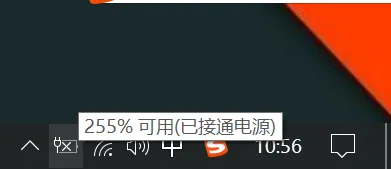
      <content type="html"><![CDATA[<section><h2>一天，笔记本电脑开机发现打不开，唉？？难不成没电了？接上电源后，开机了，但是电池可用量显示255%？？？？？？<a href="#一天笔记本电脑开机发现打不开唉难不成没电了接上电源后开机了但是电池可用量显示255"><span>#</span></a></h2></section>
<section><h2>如下图<a href="#如下图"><span>#</span></a></h2><p></p><figure><img alt="请输入图片描述" loading="lazy" width="391" height="169" src="/_astro/1926708620.B0QLBZYM_Z23Pbfh.webp" /><figcaption>请输入图片描述</figcaption></figure><p></p></section>
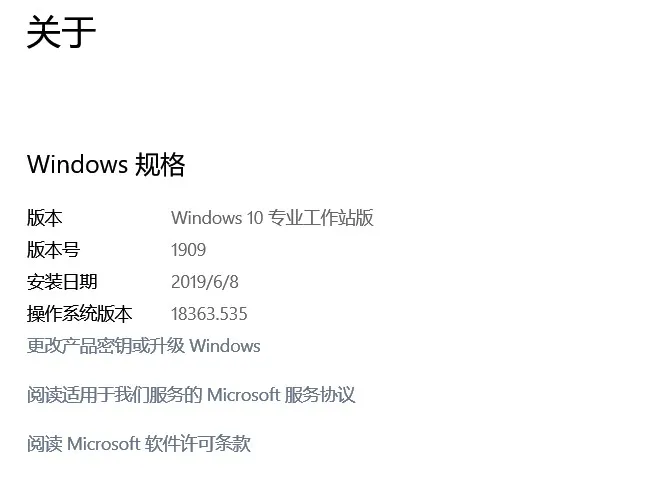
<section><h2>妈呀，吓得我立马把电源拔了，但是还剩显示255%剩余，经过一段不插电使用，发现这个电池貌似是正常的。只是显示问题，目前不知道是最新系统的bug还是我电池要坏了（电脑正常使用2年了）。<a href="#妈呀吓得我立马把电源拔了但是还剩显示255剩余经过一段不插电使用发现这个电池貌似是正常的只是显示问题目前不知道是最新系统的bug还是我电池要坏了电脑正常使用2年了"><span>#</span></a></h2></section>
<section><h2>我的系统是这个版本：<a href="#我的系统是这个版本"><span>#</span></a></h2><p></p><figure><img alt="2020-01-03 083614.jpg" loading="lazy" width="663" height="497" src="/_astro/4124879797.-m-cKJI2_Z2mG3Ma.webp" /><figcaption>2020-01-03 083614.jpg</figcaption></figure><p></p></section>
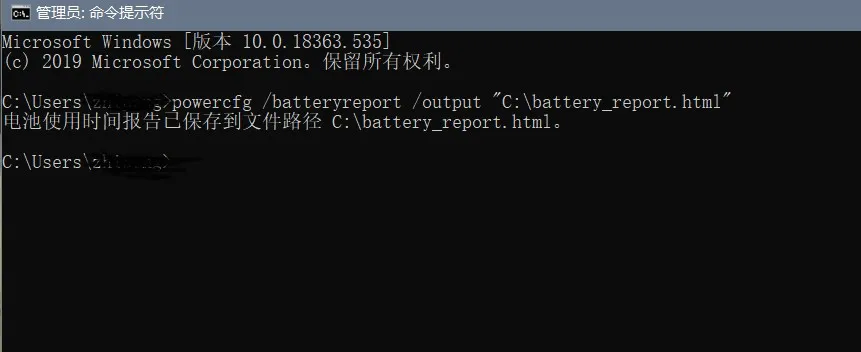
<section><h2>一般电池使用不正常，当然要先去检查电池呀，所以咱们先查一下电池的损耗吧。<a href="#一般电池使用不正常当然要先去检查电池呀所以咱们先查一下电池的损耗吧"><span>#</span></a></h2><section><h3>很简单，在CMD中一条命令即可，可能不准，但是可以参考一下，不行再去电脑店检查也不迟。<a href="#很简单在cmd中一条命令即可可能不准但是可以参考一下不行再去电脑店检查也不迟"><span>#</span></a></h3><p>命令是：</p><div><figure><figcaption></figcaption><pre><code><div><div><div>1</div></div><div><span>powercfg /batteryreport /output "目录:\battery_report.html"</span></div></div></code></pre><div><div></div><div></div></div></figure></div></section></section>
<section><h2>我这里为了方便，选的C盘根目录,所以命令是：（如图）<a href="#我这里为了方便选的c盘根目录所以命令是如图"><span>#</span></a></h2><div><figure><figcaption></figcaption><pre><code><div><div><div>1</div></div><div><span>powercfg /batteryreport /output "C:\battery_report.html"</span></div></div></code></pre><div><div></div><div></div></div></figure></div><p></p><figure><img alt="cmd" loading="lazy" width="861" height="352" src="/_astro/1011257125.DkHXgHAv_o43sE.webp" /><figcaption>cmd</figcaption></figure><p></p><section><h3>他会提示“电池使用时间报告已保存到文件路径 C:\battery_report.html。”<a href="#他会提示电池使用时间报告已保存到文件路径-cbattery_reporthtml"><span>#</span></a></h3><p></p><figure><img alt="2020-01-03 084844.jpg" loading="lazy" width="741" height="32" src="/_astro/529249158.QoEhI1VM_6EIQg.webp" /><figcaption>2020-01-03 084844.jpg</figcaption></figure><p></p></section><section><h3>然后去你的C盘的根目录即可找到一个“battery_report.html”文件，双击打开，可以看到详细信息：<a href="#然后去你的c盘的根目录即可找到一个battery_reporthtml文件双击打开可以看到详细信息"><span>#</span></a></h3></section></section>
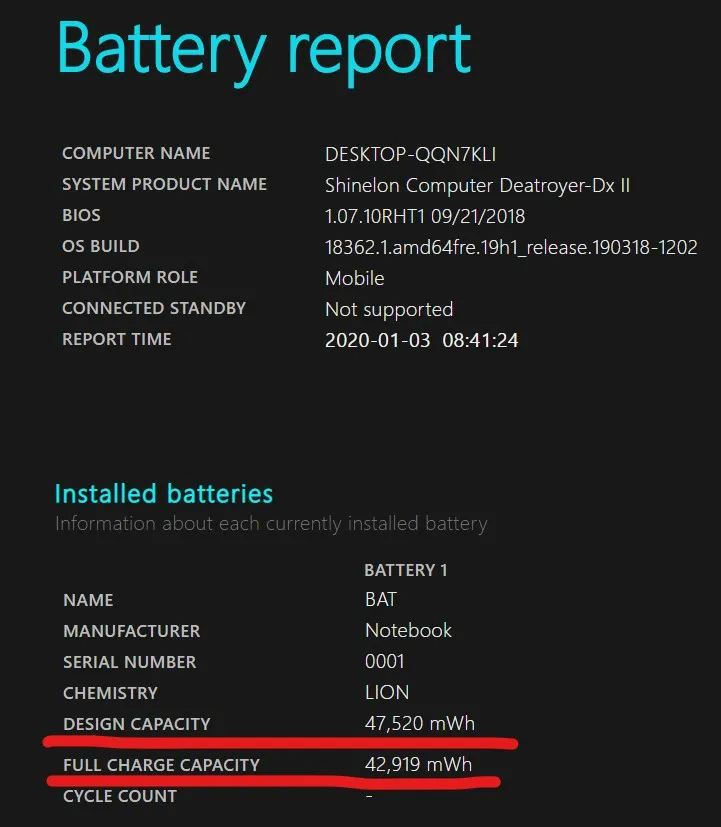
<section><h2>我划线部分：第一条是电池的额定容量，第二条是系统检测估计出的剩余容量。<a href="#我划线部分第一条是电池的额定容量第二条是系统检测估计出的剩余容量"><span>#</span></a></h2><section><h4>DESIGN CAPACITY（设计容量）	47,520 mWh<a href="#design-capacity设计容量47520-mwh"><span>#</span></a></h4></section><section><h4>FULL CHARGE CAPACITY（充满容量）	42,919 mWh<a href="#full-charge-capacity充满容量42919-mwh"><span>#</span></a></h4></section><section><h3>这个值并不稳定，所以是个参考值。<a href="#这个值并不稳定所以是个参考值"><span>#</span></a></h3></section><section><h3>（如图）<a href="#如图"><span>#</span></a></h3><p></p><figure><img alt="电池" loading="lazy" width="721" height="827" src="/_astro/1574714728.BqgS_E5C_RuFC4.webp" /><figcaption>电池</figcaption></figure><p></p></section><section><h3>这个文件记录着最近的电池行为的详细信息，可以多看看。<a href="#这个文件记录着最近的电池行为的详细信息可以多看看"><span>#</span></a></h3></section><section><h3>好了，记录表明，我的电池并没有损耗过大，<a href="#好了记录表明我的电池并没有损耗过大"><span>#</span></a></h3></section><section><h3>有时间我再去进行排查吧，估计是系统bug，或者电池温度过低？？我的环境温度挺冷的。。。。<a href="#有时间我再去进行排查吧估计是系统bug或者电池温度过低我的环境温度挺冷的"><span>#</span></a></h3></section></section>
<section><h2>教程结束，大家如有其他的方法或者同样遇到过这个问题，可以在评论区留言，如有错误，请指出，我会及时进行修改。<a href="#教程结束大家如有其他的方法或者同样遇到过这个问题可以在评论区留言如有错误请指出我会及时进行修改"><span>#</span></a></h2></section>]]></content>
    </entry>
    <entry>
      <id>https://www.sayxw.top/archives/11.html</id>
      <title type="text">笔记本obs软件黑屏？？改集显也不管有？试试这个方法吧：</title>
      <published>2019-12-11T19:25:00.000Z</published>
      <updated>2019-12-11T19:25:00.000Z</updated>
      <author><name>Sayxw</name></author>
      <link rel="alternate" href="https://www.sayxw.top/archives/11.html"/>
      <summary type="text">如题名，下面教你如何解决obs多显卡下显示器捕捉黑屏的问题。</summary>
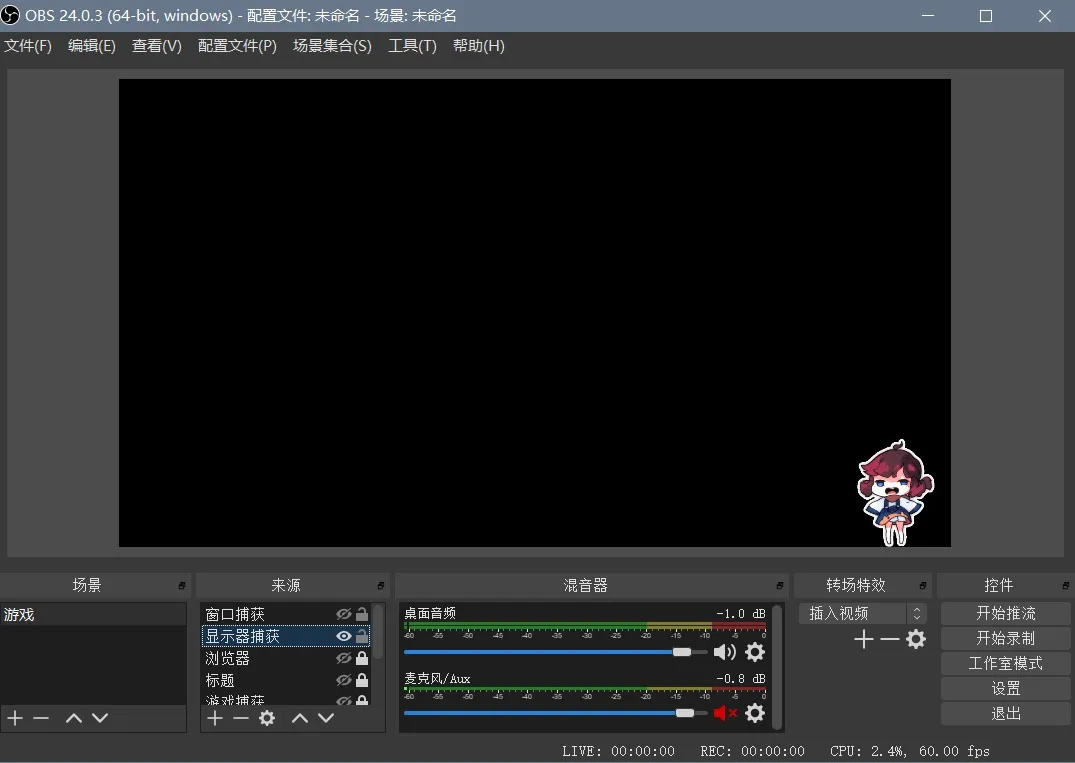
      <content type="html"><![CDATA[<section><h2>以前的windows10下，obs无法捕捉到桌面（显示器捕获），<a href="#以前的windows10下obs无法捕捉到桌面显示器捕获"><span>#</span></a></h2></section>
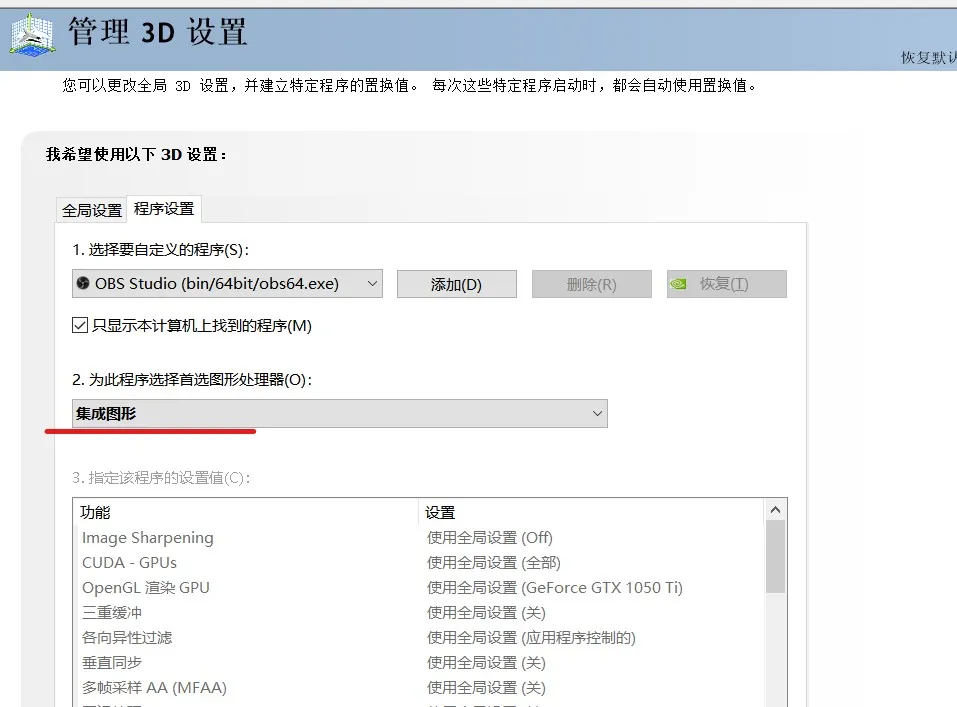
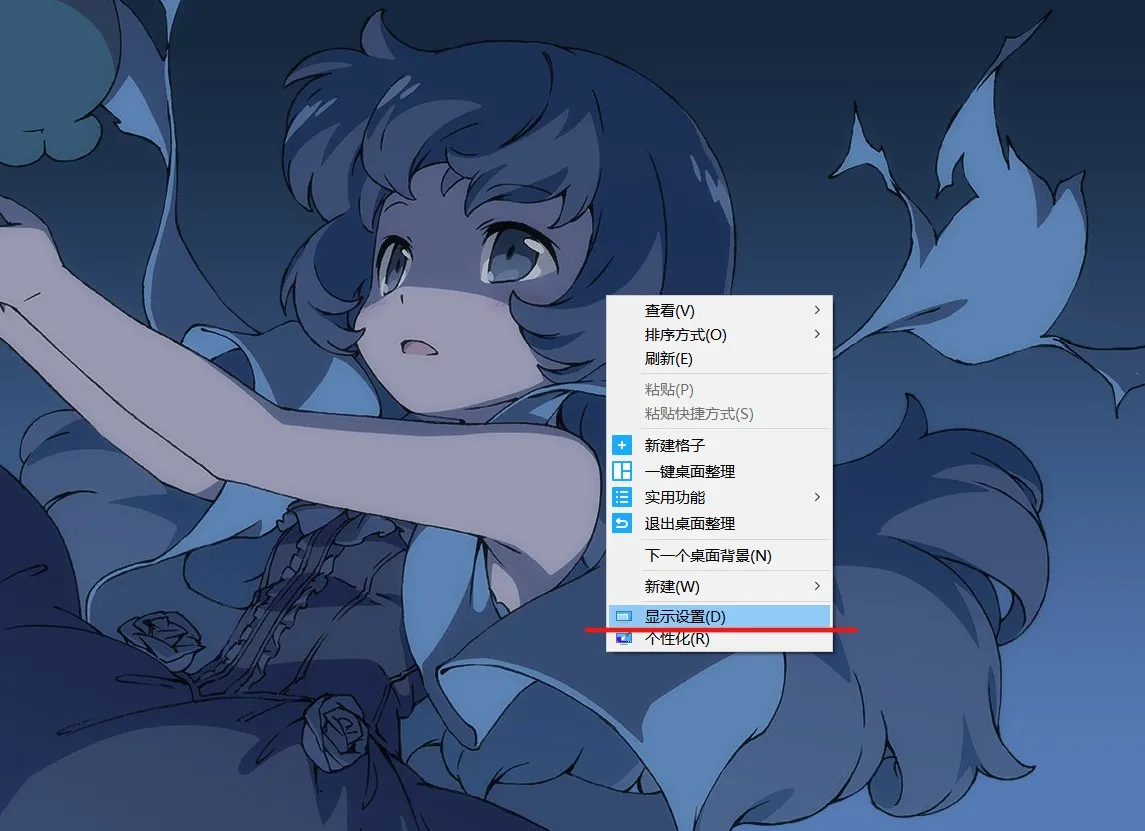
<section><h2>一直都是黑屏，基本上把obs改成集显就可以解决了：<a href="#一直都是黑屏基本上把obs改成集显就可以解决了"><span>#</span></a></h2><p></p><figure><img alt="2019-12-11 190313.jpg" loading="lazy" width="1075" height="763" src="/_astro/1250115737.bxLto2KK_eDsLg.webp" /><figcaption>2019-12-11 190313.jpg</figcaption></figure><p></p><section><h3>但是我更新到Windows10 1909后，却不管用了，还是黑屏。。。。。<a href="#但是我更新到windows10-1909后却不管用了还是黑屏"><span>#</span></a></h3><p></p><figure><img alt="2019-12-11 190537.jpg" loading="lazy" width="957" height="707" src="/_astro/1378191169.BwJJeFNI_vrSQi.webp" /><figcaption>2019-12-11 190537.jpg</figcaption></figure><p></p></section><section><h3>这可咋整？？后来百度了一通，没找到方法，最后在B站的视频区找到解决办法了，当然具体原因我也不清楚，可能是windows10的bug吧。。<a href="#这可咋整后来百度了一通没找到方法最后在b站的视频区找到解决办法了当然具体原因我也不清楚可能是windows10的bug吧"><span>#</span></a></h3><hr /></section><section><h3>具体方法如下：<a href="#具体方法如下"><span>#</span></a></h3></section><section><h3>桌面右击—显示设置<a href="#桌面右击显示设置"><span>#</span></a></h3><p></p><figure><img alt="2019-12-11 191006.jpg" loading="lazy" width="1145" height="831" src="/_astro/1301834897.DGywTxV1_2udnqV.webp" /><figcaption>2019-12-11 191006.jpg</figcaption></figure><p></p></section><section><h3>进入后，下滑找图形设置<a href="#进入后下滑找图形设置"><span>#</span></a></h3><p></p><figure><img alt="2019-12-11 191141.jpg" loading="lazy" width="1108" height="757" src="/_astro/2878960440.CQAlYj_v_ZMHT86.webp" /><figcaption>2019-12-11 191141.jpg</figcaption></figure><p></p></section><section><h3>点击浏览，查找obs软件的主程序<a href="#点击浏览查找obs软件的主程序"><span>#</span></a></h3><p></p><figure><img alt="2019-12-11 191314.jpg" loading="lazy" width="1107" height="757" src="/_astro/2046461936.BNCfQp1__6WiqK.webp" /><figcaption>2019-12-11 191314.jpg</figcaption></figure>
<figure><img alt="2019-12-11 191442.jpg" loading="lazy" width="1112" height="747" src="/_astro/3331901013.C_wB3HoC_Z26dCWm.webp" /><figcaption>2019-12-11 191442.jpg</figcaption></figure><p></p></section><section><h3>然后还差一步，点击刚添加的obs，点击选项---改成节能—保存即可<a href="#然后还差一步点击刚添加的obs点击选项---改成节能保存即可"><span>#</span></a></h3><p></p><figure><img alt="2019-12-11 191833.jpg" loading="lazy" width="1103" height="753" src="/_astro/200104361.BJ5dogXx_sx2Cc.webp" /><figcaption>2019-12-11 191833.jpg</figcaption></figure><p></p><section><h4>重启obs即可解决黑屏问题，笔记本亲测无问题。记住，改完需要重启obs。<a href="#重启obs即可解决黑屏问题笔记本亲测无问题记住改完需要重启obs"><span>#</span></a></h4><p></p><figure><img alt="2019-12-11 192122.jpg" loading="lazy" width="1083" height="766" src="/_astro/1872839454.BqfdJx-f_1ewdb9.webp" /><figcaption>2019-12-11 192122.jpg</figcaption></figure><p></p></section></section></section>]]></content>
    </entry>
    <entry>
      <id>https://www.sayxw.top/archives/10.html</id>
      <title type="text">emmmm，今天给你们发点无聊的网站吧~~</title>
      <published>2019-09-08T11:08:00.000Z</published>
      <updated>2019-09-08T11:08:00.000Z</updated>
      <author><name>Sayxw</name></author>
      <link rel="alternate" href="https://www.sayxw.top/archives/10.html"/>
      <summary type="text"></summary>
      <content type="html"><![CDATA[<p><strong>1.无聊？？打开读读书吧。</strong>
<a href="https://meiriyiwen.com" target="_blank">https://meiriyiwen.com</a> 每日一文，顾名思义，随机文章，还有声音的。。。。</p>
<p><strong>2.偶然发现的一个国外的壁纸站，质量还不错，可以直接访问。</strong>
<a href="https://wallhaven.cc/" target="_blank">https://wallhaven.cc/</a>  英文网站，嘛。看的是图片，文字是啥意思无所谓了hhh。</p>
<p><strong>3.还是国外的，可以看国外风光，360°的全景，蛮不错的。</strong>
<a href="http://www.airpano.com/" target="_blank">http://www.airpano.com/</a>  英文网站，有图片和视频，全景的，就是速度有点慢。。</p>
<p><strong>4.这个应该都知道吧，荔枝电台。</strong>
<a href="https://www.lizhi.fm/" target="_blank">https://www.lizhi.fm/</a></p>
<p><strong>5.这个网站意义不明，难不成用来测试鼠标滚轮？？？</strong>
<a href="https://worlds-highest-website.com/" target="_blank">https://worlds-highest-website.com/</a></p>
<p><strong>6.更直接的来了：TAKE ME TO ANOTHER USELESS WEBSITE ！</strong>
<a href="https://theuselessweb.com/" target="_blank">https://theuselessweb.com/</a></p>
<p><strong>7.在地址栏输入8个i，然后.com，访问试试~~</strong>
<a href="http://www.iiiiiiii.com/" target="_blank">http://www.iiiiiiii.com/</a> 啊呀呀呀呀呀呀呀呀呀呀呀呀呀呀呀呀呀呀呀呀呀呀呀。。。。。。
然后吧这个还不只一个= = ！</p>
<p></p><figure><img alt="5ab6a8ada449b74a8a9049e29b8b36ea.jpg" loading="lazy" width="238" height="274" src="/_astro/254668457.C6Ve8P1S_Ze2tfm.webp" /><figcaption>5ab6a8ada449b74a8a9049e29b8b36ea.jpg</figcaption></figure><p></p>
<p><a href="http://www.lalalaa.com/" target="_blank">http://www.lalalaa.com/</a></p>
<p><a href="http://www.ooooiiii.com/" target="_blank">http://www.ooooiiii.com/</a></p>
<p><a href="http://www.dabadabadab.com/" target="_blank">http://www.dabadabadab.com/</a></p>
<p><strong>碰巧还看到个中文的，闲的蛋疼的hhh：
<a href="https://isitchristmas.com/" target="_blank">https://isitchristmas.com/</a></strong></p>]]></content>
    </entry>
    <entry>
      <id>https://www.sayxw.top/archives/9.html</id>
      <title type="text">中枪了</title>
      <published>2019-07-01T11:45:47.000Z</published>
      <updated>2019-07-01T11:45:47.000Z</updated>
      <author><name>Sayxw</name></author>
      <link rel="alternate" href="https://www.sayxw.top/archives/9.html"/>
      <summary type="text"></summary>
      <content type="html"><![CDATA[<p><em>今天在某个地方看到一句评论，吐槽时光：</em></p>
<p>早晨：今天又是元气满满的一天
上午：哈哈哈哈哈哈哈哈哈哈哈
中午：哈哈哈哈哈哈哈哈哈哈哈
下午：哈哈哈哈哈哈哈哈哈哈哈
傍晚：哈哈哈哈哈哈哈哈哈哈哈
深夜：人间不值得</p>
<p>我竟然中枪了哈哈哈哈哈哈哈哈
（智商-10086）</p>]]></content>
    </entry>
    <entry>
      <id>https://www.sayxw.top/archives/8.html</id>
      <title type="text">树莓派搭建RTMP服务进行本地推流、拉流</title>
      <published>2019-06-12T01:58:00.000Z</published>
      <updated>2019-06-12T01:58:00.000Z</updated>
      <author><name>Sayxw</name></author>
      <link rel="alternate" href="https://www.sayxw.top/archives/8.html"/>
      <summary type="text">树莓派进行直播推流，以及本地搭建推拉流测试方法。</summary>
      <content type="html"><![CDATA[<p>演示直播间：
<a href="https://live.bilibili.com/1983876" target="_blank">https://live.bilibili.com/1983876</a></p>
<p>运行环境
debian9 arm
nginx-1.16.0
nginx-http-flv-module
ffmpeg(选用)</p>
<p>相关地址：</p>
<p><a href="https://github.com/winshining/nginx-http-flv-module/blob/master/README.CN.md" target="_blank">https://github.com/winshining/nginx-http-flv-module/blob/master/README.CN.md</a></p>
<p><a href="http://nginx.org/" target="_blank">http://nginx.org/</a></p>
<p>nginx的服务器的搭建</p>
<p>安装nginx的依赖库</p>
<div><figure><figcaption></figcaption><pre><code><div><div><div>1</div></div><div><span>sudo apt-get update</span></div></div></code></pre><div><div></div><div></div></div></figure></div>
<div><figure><figcaption></figcaption><pre><code><div><div><div>1</div></div><div><span>sudo apt-get install libpcre3 libpcre3-dev</span></div></div><div><div><div>2</div></div><div><span>sudo apt-get install openssl libssl-dev</span></div></div></code></pre><div><div></div><div></div></div></figure></div>
<p>编译环境补充</p>
<div><figure><figcaption></figcaption><pre><code><div><div><div>1</div></div><div><span>sudo apt-get install -y curl build-essential make gcc libpcre3 libpcre3-dev libpcre++-dev zlib1g-dev libbz2-dev libxslt1-dev libxml2-dev libgd2-xpm-dev libgeoip-dev libgoogle-perftools-dev libperl-dev libssl-dev libcurl4-openssl-dev</span></div></div></code></pre><div><div></div><div></div></div></figure></div>
<p>配置并编译nginx
使用nginx的默认配置，添加nginx的rtmp模块。</p>
<div><figure><figcaption></figcaption><pre><code><div><div><div>1</div></div><div><span>./configure --with-http_ssl_module  --add-module=nginx-http-flv-module的目录</span></div></div></code></pre><div><div></div><div></div></div></figure></div>
<div><figure><figcaption></figcaption><pre><code><div><div><div>1</div></div><div><span>make</span></div></div></code></pre><div><div></div><div></div></div></figure></div>
<p>（加-jx可以提高编译速度，x为核心数，看你设备的cpu核心数了。如你是8核的，那么就是make -j8）</p>
<div><figure><figcaption></figcaption><pre><code><div><div><div>1</div></div><div><span>sudo make install</span></div></div></code></pre><div><div></div><div></div></div></figure></div>
<p>运行测试nginx
测试配置文件是否正常</p>
<div><figure><figcaption></figcaption><pre><code><div><div><div>1</div></div><div><span>/usr/local/nginx/sbin/nginx -t</span></div></div></code></pre><div><div></div><div></div></div></figure></div>
<p>提示：</p>
<div><figure><figcaption></figcaption><pre><code><div><div><div>1</div></div><div><span>nginx: the configuration file /usr/local/nginx/conf/nginx.conf syntax is ok</span></div></div></code></pre><div><div></div><div></div></div></figure></div>
<div><figure><figcaption></figcaption><pre><code><div><div><div>1</div></div><div><span>nginx: configuration file /usr/local/nginx/conf/nginx.conf test is successful</span></div></div></code></pre><div><div></div><div></div></div></figure></div>
<p>运行命令</p>
<div><figure><figcaption></figcaption><pre><code><div><div><div>1</div></div><div><span>/usr/local/nginx/sbin/nginx</span></div></div></code></pre><div><div></div><div></div></div></figure></div>
<p>就可以启动nginx了</p>
<p>其他常用命令</p>
<div><figure><figcaption></figcaption><pre><code><div><div><div>1</div></div><div><span>-t 检查配置文件是否正确</span></div></div><div><div><div>2</div></div><div><span>-s reload  重启nginx服务</span></div></div><div><div><div>3</div></div><div><span>-s stop    停止nginx服务</span></div></div><div><div><div>4</div></div><div><span>-V  查看nginx版本信息和添加的模块信息。</span></div></div></code></pre><div><div></div><div></div></div></figure></div>
<p>注意这个V是大写的。</p>
<p>注意：以后所有的命令都在/usr/local/nginx目录运行，也nginx配置文件的相对目录。</p>
<p>配置rtmp</p>
<p>nginx.conf里加入</p>
<div><figure><figcaption></figcaption><pre><code><div><div><div>1</div></div><div><span>rtmp {</span></div></div><div><div><div>2</div></div><div><span><span>    </span></span><span>server {</span></div></div><div><div><div>3</div></div><div><span><span>        </span></span><span>listen 1935; #监听的端口</span></div></div><div><div><div>4</div></div><div><span><span>        </span></span><span>chunk_size 4000;</span></div></div><div><div><div>5</div></div><div><span><span>        </span></span><span>application live { #rtmp推流请求路径</span></div></div><div><div><div>6</div></div><div><span><span>            </span></span><span>live on;</span></div></div><div><div><div>7</div></div><div><span><span>            </span></span><span>hls on;</span></div></div><div><div><div>8</div></div><div><span><span>            </span></span><span>hls_path /home/hls; #临时储存视频切片缓存的地方</span></div></div><div><div><div>9</div></div><div><span><span>            </span></span><span>hls_fragment 5s;</span></div></div><div><div><div>10</div></div><div><span><span>        </span></span><span>}</span></div></div><div><div><div>11</div></div><div><span><span>    </span></span><span>}</span></div></div><div><div><div>12</div></div><div><span>}</span></div></div></code></pre><div><div></div><div></div></div></figure></div>
<p>后面就可以进行推流测试咯。</p>
<p>可以用ffmpeg推流，很好用！</p>
<p>若推流地址</p>
<div><figure><figcaption></figcaption><pre><code><div><div><div>1</div></div><div><span>rtmp://127.0.0.1:1935/live/xx</span></div></div></code></pre><div><div></div><div></div></div></figure></div>
<p>即播放地址</p>
<div><figure><figcaption></figcaption><pre><code><div><div><div>1</div></div><div><span>rtmp://127.0.0.1:1935/live/xx</span></div></div></code></pre><div><div></div><div></div></div></figure></div>
<p>随后可用VLC等播放器查看效果》》</p>]]></content>
    </entry>
    <entry>
      <id>https://www.sayxw.top/archives/7.html</id>
      <title type="text">emmm…………</title>
      <published>2019-06-12T01:57:40.000Z</published>
      <updated>2019-06-12T01:57:40.000Z</updated>
      <author><name>Sayxw</name></author>
      <link rel="alternate" href="https://www.sayxw.top/archives/7.html"/>
      <summary type="text"></summary>
      <content type="html"><![CDATA[<p>大丈夫大丈夫
dai jo ubu dai jo ubu
おどけてみせる僕は
o do ke te mi se ru boku ha</p>]]></content>
    </entry>
    <entry>
      <id>https://www.sayxw.top/archives/6.html</id>
      <title type="text">诶呀，这个6月我过得好难受…</title>
      <published>2019-06-07T00:29:00.000Z</published>
      <updated>2019-06-07T00:29:00.000Z</updated>
      <author><name>Sayxw</name></author>
      <link rel="alternate" href="https://www.sayxw.top/archives/6.html"/>
      <summary type="text"></summary>
      <content type="html"><![CDATA[<p>怎么说呢，这个6月，简直就是网络姨妈期。</p>
<p>把我难受的呀，各种网站进不去，各种IP被ban，我的博客也不幸免，最终只能靠某些手段来苟延残喘一下。</p>
<p>目前还可以访问，就是慢点，等过阵子再迁移吧，心疼目前这个服务器…………</p>
<p>各种消停点，等过阵子再折腾吧…</p>]]></content>
    </entry>
    <entry>
      <id>https://www.sayxw.top/archives/5.html</id>
      <title type="text">人，没有绝对的弱势。</title>
      <published>2019-05-13T00:50:51.000Z</published>
      <updated>2019-05-13T00:50:51.000Z</updated>
      <author><name>Sayxw</name></author>
      <link rel="alternate" href="https://www.sayxw.top/archives/5.html"/>
      <summary type="text"></summary>
      <content type="html"><![CDATA[<p>有时候，你可能觉得，啊，我怎么这么不行，人家怎么那么xxxx啊，我怎么就这么xxx啊……</p>
<p>你这么想，就错了。
每个人都是不同的，不只是性别上的不同，外貌的不同，性格的不同，等等等等。</p>
<p>人是没有绝对的弱势的。每个人都有自己的特别之处，也有自己擅长的事情，这个擅长的事情可能是与生俱来的，也可能是后期养成的，每个人的学习和接触理解事物的速度都是不同的，所以也就没有了绝对的好与不好的区分。</p>
<p>世界给每个人的“能力”都是平等的，你有不擅长的事情，自然也有你擅长的事情，不可能一无是处。</p>
<p>所以，与其自暴自弃，感到自闭，还不如去努力发展自己擅长的事情，并且，你不擅长的，并不是你不能做、做不到的，不擅长仅仅是相对于你来说，做的比较慢比较难的，只要你努力，就可以做得到。</p>
<p>突发感想，记录一下此时的心情吧，虽然可能没什么道理可言。</p>]]></content>
    </entry>
    <entry>
      <id>https://www.sayxw.top/archives/4.html</id>
      <title type="text">元气囝仔--朴实纯真的生活，才是最幸福的</title>
      <published>2019-04-12T18:02:38.000Z</published>
      <updated>2019-04-12T18:02:38.000Z</updated>
      <author><name>Sayxw</name></author>
      <link rel="alternate" href="https://www.sayxw.top/archives/4.html"/>
      <summary type="text"></summary>
      <content type="html"><![CDATA[<section><h3>被朋友安利的一个番，点开后，就发现很熟悉，原来和《天真与闪电》、《白兔糖》的风格很像，看着很舒服。<a href="#被朋友安利的一个番点开后就发现很熟悉原来和天真与闪电白兔糖的风格很像看着很舒服"><span>#</span></a></h3></section>
<section><h3>在元气囝仔中—第三话18分10秒的一个对话，触动很大，因为我目前在学校就处于这种心态，比不上人家，就觉得很着急，很气馁。<a href="#在元气囝仔中第三话18分10秒的一个对话触动很大因为我目前在学校就处于这种心态比不上人家就觉得很着急很气馁"><span>#</span></a></h3><p>老师有的捡到吗？</p><p>没有，</p><p>老师好像很笨拙呢，</p><p>我真的是很没有用…</p><p>谁叫你一直往上看，当然不行。
你得耐心的等它掉地上再捡啊，
机会常常会掉到下面来呢。</p><p>康婆婆，要是我还是抢不到要怎么办才好？
如果有人比我还厉害，让我一直抢不到呢？</p><p>这种时候，
“请你先吧”
你就让给他，锁定下一个更大的麻糬，
只要不放弃让出和捡拾，就能得到这么多呢！</p><p>瞬间触动，也清醒了。。</p></section>]]></content>
    </entry>
    <entry>
      <id>https://www.sayxw.top/archives/3.html</id>
      <title type="text">博客重新开始了！</title>
      <published>2019-04-06T10:48:00.000Z</published>
      <updated>2019-04-06T10:48:00.000Z</updated>
      <author><name>Sayxw</name></author>
      <link rel="alternate" href="https://www.sayxw.top/archives/3.html"/>
      <summary type="text"></summary>
      <content type="html"><![CDATA[<p>对，原来的直接删库了，rm -rf了，很干净，这次采用typecho了，用一个很简朴的程序，来记录日常生活了，新的开始咯。</p>
<p>怎么说呢，之前发的很多，100多篇文章，有些写的很认真，有些也写的很随意，不过都成就感十足，反正我建立博客也不是为了别的，自己开心，自己玩的。</p>
<p>从2016年才真正买域名，买服务器，之前一直在用那些“免费主机”啥的，凑合用。</p>
<p>一直维护到现在了，也学到了很多，毕竟我没有去系统的学过建站，运营啥的（貌似也没啥用，自己玩要什么运营/笑），纯属兴趣驱使，都是百度呀，Google呀，查资料教程跟着做，不知不觉我的便签里就多了很多杂七拉八的“笔记”，有些甚至都记住了，在今年也正是踏入了电脑学校，虽然学的也不是网站这方面的，但这是我一个新的开始，所以就挺自然的删掉了网站，决定重新开始了。</p>]]></content>
    </entry>
    <entry>
      <id>https://www.sayxw.top/archives/2.html</id>
      <title type="text">又发现一个超级好用的网盘程序--File browser</title>
      <published>2019-02-20T08:45:00.000Z</published>
      <updated>2019-02-20T08:45:00.000Z</updated>
      <author><name>Sayxw</name></author>
      <link rel="alternate" href="https://www.sayxw.top/archives/2.html"/>
      <summary type="text"></summary>
      <content type="html"><![CDATA[<section><h2>搭建私人网盘已经是个很简单的事情了，方法也居多，程序五花八门的，<a href="#搭建私人网盘已经是个很简单的事情了方法也居多程序五花八门的"><span>#</span></a></h2><p>这里我只列举我喜欢的哈，比较简单的基于php的，比如说大名鼎鼎的 owncloud，这个是我最喜欢的一个，目前也在用，因为插件丰富，功能拓展无敌，</p><p>比较傻瓜式的有“芒果云”也有叫“可道云”的，官网是：<a href="https://kodcloud.com/" target="_blank">https://kodcloud.com/</a>，搭建简单，不需要数据库，适合小白用，功能也挺多的，就是有功能限制（收费解锁），免费版也基本够用了。</p><p>今天要说的，是最近瞎逛GitHub发现的一个程序，搭建方法也简单，重要的是极其轻量级，访问速度快，占用资源少，搭建靠命令，不用怕，也就那么几个命令， 稍改复制粘贴就行。</p><p>程序名叫filebrowser，哈哈翻译过来就是“文件浏览器”，是不是觉得太随便了。</p><p>但是别小看他，在GitHub上已经有着   2个 分支   53个 版本   40个 贡献者了，等你亲自体验后，就会发现这个程序，麻雀虽小，五脏俱全！</p><p>项目地址：<a href="https://github.com/filebrowser/filebrowser" target="_blank">https://github.com/filebrowser/filebrowser</a></p><p>官网：<a href="https://docs.filebrowser.xyz/" target="_blank">https://docs.filebrowser.xyz/</a></p></section>]]></content>
    </entry>
    <entry>
      <id>https://www.sayxw.top/archives/1.html</id>
      <title type="text">新一代萌王诞生了？？</title>
      <published>2019-01-10T20:12:00.000Z</published>
      <updated>2019-01-10T20:12:00.000Z</updated>
      <author><name>Sayxw</name></author>
      <link rel="alternate" href="https://www.sayxw.top/archives/1.html"/>
      <summary type="text">动漫 关于我转生变成史莱姆这档事。</summary>
      <content type="html"><![CDATA[<section><h2>关于我转生变成史莱姆这档事<a href="#关于我转生变成史莱姆这档事"><span>#</span></a></h2><p></p><figure><img alt="201901101547065808199287.png" loading="lazy" width="281" height="375" src="/_astro/706227068.C1y8foir_ZNflGi.webp" /><figcaption>201901101547065808199287.png</figcaption></figure><p></p><p>对于这部番，说起来也惭愧，18年10月开播，我至今天才来得及看，
然后，一口气14话…（停不下来），细读番名和慢看标签：”…转生成史莱姆这档子事，
又瞅了瞅封面，一群妹子，中间捧着的那个球球就是主角了吧，哇靠…我瞬间感觉我生不如史………也明白”后宫”这个标签…………”
咳咳行了，点进来了就去看看这个史莱姆能搞出什么名堂（先关闭弹幕），
其次就是看评论中最为频繁出现的关键词”萌王”，瞅了封面一圈，莫非就是中间那个蓝发妹？［认真脸］
（到后来才知道我被骗了，别问我为什么，我不说不说就不说，[不剧透]，笑~）
首先看到的就是一个37岁的大叔，
陪基友当电灯泡突然街上窜出一个持刀歹徒，冲着基友的方向跑了过去，大叔挺身而出将基友推开，不料被歹徒刺中背部………倒在了血泊里。
这位37岁的单身大叔就这样不治身亡了，我…懵逼中…唉？史莱姆呢？并且这是现代社会啊？（这恰恰也是用来勾引你们点开下一话的铺垫）
为了良好的观 番 体 验 ，我就不说太多了，给你们留一堆疑问，赶紧去看吧，相信你们不会觉得差的</p><p>前方剧透警告（真香），还没有看的就别往下看了~</p><p>猪头族突然疯狂进攻周边魔物，进攻到蜥蜴族领地的时候，蜥蜴族族长发现敌军数量太多，
竟然有20多万，于是决定向哥布林求助增援，让信使（坑爹儿子）去请援军…
这里居然占用了一话的时间，估计就是这些让人觉得剧情放水了吧，</p><p>其实不然，毕竟已经14话了，说明并不是一般传统快节奏12话完结那样，
所以这部番应该（绝对）是一部半年番了，工期够用，
目前来看经费也够用（第14话的战斗好燃，好燃，特效爆炸，就冲利姆鲁那个魔法阵……），也不赶时间，所以嘛…不需要慌。</p><p>从漫画的角度来讲，动画化后，目前14话里删减的内容也是有的。
比如利姆鲁在吞噬猪头帝哪里，删了一些我认为不应该删掉的剧情：（点击图片可以放大）</p><p></p><figure><img alt="201901101547066888198858.jpeg" loading="lazy" width="800" height="1150" src="/_astro/454296903.C-0H3NXL_1WqqdX.webp" /><figcaption>201901101547066888198858.jpeg</figcaption></figure><p></p><p>由于岗牙之前的攻击消耗太大了，没魔素了，利姆鲁便让岚牙进入自己影子里休息，</p><p>猪头帝向利姆鲁问了一句“你把同伴吃了吗？” </p><p>利姆露回答说“我是不会吃掉同伴的，毕竟我又不是你。”</p><p>猪头帝听后十分的生气，便开始攻击利姆鲁。
</p><figure><img alt="201901101547067004616191.jpeg" loading="lazy" width="800" height="1149" src="/_astro/668620992.Cb9Qw3HK_Zg587e.webp" /><figcaption>201901101547067004616191.jpeg</figcaption></figure>
<figure><img alt="201901101547067004629866.jpeg" loading="lazy" width="800" height="1149" src="/_astro/3806277805.BnbiMTDD_Z32FIY.webp" /><figcaption>201901101547067004629866.jpeg</figcaption></figure>
<figure><img alt="201901101547067004844079.jpeg" loading="lazy" width="800" height="1149" src="/_astro/2702842910.A9TuXKCI_Z21F7zP.webp" /><figcaption>201901101547067004844079.jpeg</figcaption></figure><p></p><p>此外漫画里猪头帝最后不是被利姆鲁吃掉的，而是倒在了一片绿色的草地上沉睡了。</p><p>猪头帝在死前对利姆鲁说：</p><p>谢谢你了，我现在，不会再感觉到饥饿了。</p><p>利姆露也对着猪头帝说了一句十分帅气的话：</p><p>“祝君好梦！！我赢了。”</p><p>………</p><p>总之我们也在此祝这位仁慈的王，好好的睡上一觉吧。</p><p>最后滑稽一下：咱们的萌王，是个中性人，这代表着什么？</p><p>………………萌王男女通吃   哈哈哈哈哈……</p><p>我差点就忘了萌王曾经是个37岁的大叔（ ’ - ’ *</p></section>
<section><h2>信息<a href="#信息"><span>#</span></a></h2><section><h3>标签：小说改 后宫 奇幻 装逼 战斗 魔法<a href="#标签小说改-后宫-奇幻-装逼-战斗-魔法"><span>#</span></a></h3><p>于2018年10月2日 开播 已完结 全第24话</p><p>前往观看：<a href="https://www.bilibili.com/bangumi/play/ss25739/" target="_blank">关于我转生变成史莱姆这档事</a>
至于漫画在哪看，我就不写出来了，网上找吧。</p></section><section><h3>简介：<a href="#简介"><span>#</span></a></h3><p>史莱姆生活，开始了。上班族的三上悟在道路上被歹徒给刺杀身亡后，回过神来发现自己转生到了异世界。
不过，自己居然是“史莱姆”！他在得到利姆露这个名字后开始了自己的史莱姆人生，随着与各个种族相处交流的过程中，
他定下了一个目标——那就是“建立一个任何种族都能愉快地一起生活的国家”！</p></section></section>
<section><h2>STAFF<a href="#staff"><span>#</span></a></h2><p>原作：川上泰树、伏濑、みっつばー《关于我转生变成史莱姆这档事》（讲谈社《月刊少年天狼星》连载）</p><p>监督：菊地康仁
副监督：中山敦史
系列构成：笔安一幸 
角色设计：江畑谅真 
怪物设计：岸田隆宏 
美术监督：佐藤步 
美术设定：藤濑智康、佐藤正浩  
色彩设计：齐藤麻记 
摄影监督：佐藤洋 
图形设计：生原雄次 
编辑：神宫司由美 
音响监督：明田川仁 
音乐：Elements Garden 
动画制作：8bit（8-bit）</p><section><h3>角色声优<a href="#角色声优"><span>#</span></a></h3><p>利姆鲁·特恩佩斯特：冈咲美保 
大贤者：丰口惠美 
维鲁德拉·特恩佩斯特：前野智昭 
井沢静江：花守由美里 
岚牙：小林亲弘 
红丸：古川慎 
朱菜：千本木彩花
紫苑：M・A・O 
苍影：江口拓也 
白老：大塚芳忠 
三上悟：寺岛拓笃 
希兹：花守由美里 
利古鲁德：山本兼平 
利古鲁：石谷春贵 
哥布塔：泊明日菜
凯金：斧敦 
托蕾妮：田中理惠 
艾莲：熊田茜音 
卡巴尔：高梨谦吾 
米莉姆：日高里菜</p></section></section>]]></content>
    </entry>
</feed>